Category Archives: iphone

Comic Touch – iPhone App of the Week

Comic Touch – iPhone App of the Week

This is a regular feature of the blog looking at the various iPhone Apps available. Some of the apps will be useful for those involved in learning technologies, others will be useful in improving the way in which you work, whilst a few will be just plain fun! Some will be free, others will cost a little and one or two will be what some will think is quite expensive. Though called iPhone App of the Week, most of these apps will also work on the iPod touch.

This week’s App is Comic Touch.

Update: App has been updated to Comic Touch 2, which is free.

.

Make your photos come alive by giving them the Comic Touch. Add balloons to give your subjects thoughts and words. Add captions to describe the scene or give the photo a title.

Use the PhotoBooth-style warping effects to add some fun. Turn people into caricatures of themselves or give them bizarre expressions. Endless fun!

Share your creations via email or save them back to the Photo Library for even more sharing options.

£1.79 and a free Lite version

To be honest the iPhone is not really the best tool for working with images and graphics (no mouse or pen) however there are plenty of image manipulation and graphical applications in the App store.

I am a fan of Comic Life from Plasq and have used it quite a few times to create comics to support training. Plasq have produced an app for the iPhone that does something similar but for images (or photographs) on the iPhone.

You can take an existing image or even better take a photograph, and then comicfy it!

You can add a caption, speech bubbles, enhance the image and then save the image, e-mail it, or upload it.

What makes this work over some other comic apps on the App Store is that it is a simple app, there are other comic apps available with more features, and I will cover some of these in a later posting.

One of the advantages of this App is that you can create comics on the fly on the phone. You don’t need to worry about booting up a computer or having the right app on the right computer, etc… you can take the image with the camera, comicfy it, and then share it. This is what makes Comic Touch (and other similar apps) such a powerful tool.

So you don’t want to pay £1.79 then there is a lite version that is free Comic Touch Lite.

The main difference is in the free version all the comics you make have a Comic Touch watermark.

So why would you use comics to enhance learning?

Comics can be used in many different ways to enhance and enrich learning activites, as well as other processes in the college. Think of it as just another medium to get a message across to learners.

  • Rather than have a written list of instructions for a particular activity, create a comic that as well as text has images that support the explanation of the instructions.
  • Create a comic of how to find help and support in the Library or Learning Resources Centre.
  • Add captions and speech balloons to a photograph to make a informative poster.

Basically to add variety to learning resources and handouts. To catch the interest of learners, engage them with what may be considered boring material. Learners can use the App to create stuff, storyboard videos, posters, etc….

UpdateApp has been updated to Comic Touch 2, which is free.

myStarbucks UK – iPhone App of the Week

myStarbucks UK – iPhone App of the Week

This is a regular feature of the blog looking at the various iPhone Apps available. Some of the apps will be useful for those involved in learning technologies, others will be useful in improving the way in which you work, whilst a few will be just plain fun! Some will be free, others will cost a little and one or two will be what some will think is quite expensive. Though called iPhone App of the Week, most of these apps will also work on the iPod touch.

This week’s App is myStarbucks UK

Free

For some unknown and arcane reason (well some comments I made on Twitter I believe) it has come to pass that across the e-learning world (and beyond) that I am a coffee addict.

Or it might be that I don’t touch instant coffee with a barge pole and only drink what I believe to be real coffee! You know the kind made with beans…

Now I do visit Starbucks, but to be honest it is not my first choice when I buy coffee, but it isn’t as bad as some places I have been to.

There is now an official Starbucks App on the iTunes store.

The official UK iPhone application from Starbucks! Want to find a store that’s open nearby or near a place where you’re meeting a friend? Now you can do that and more with myStarbucks. Explore our whole bean coffees, find delicious food and nutrition information, and build your own perfect drinks. Want to share? You can send your drinks to your friends by email, SMS, and via Facebook and Twitter directly to their iPhone or iPod ®Touch.

The only real reason to get this app is to find your closest Starbucks, and that’s about it.

You may recall, back in February 2008, I wrote about a proposed Starbucks App.

Imagine going to Starbucks having already ordered your drink from your iPhone?

Well this App doesn’t do that. It does list what drinks and food you can buy, but doesn’t tell you if they have sold out of a particular muffin or sandwich.

However if you do like drinking Starbucks coffee (maybe you are a fan of their Frappacinos) then this is certainly one useful App if you are ever in a place you don’t know and want a coffee.

Is the future of learning in TV?

Despite the growth of the internet, television is still a technology which most people have, most people use and dominates a lot of peoples’ lives.

Even the most popular videos on YouTube are predominantly from television programmes.

This week sees the start of Seesaw TV, an online service that allows you to catch up with TV and view programmes from an archive of over 3000 hours of footage. Seesaw is funded by advertising – viewers see unskippable 60-second ad breaks before and during each show.

The BBC said it was also considering releasing apps later this year for its popular iPlayer service.

So despite the growth of the internet, television is still big and still predominates people’s time. For some young people, too much time…

Video games, mobile phones and TV are keeping children up at night, answers to a BBC questionnaire suggest.

Intel believe that television will still be at the heart of our homes in the future.

Justin Rattner, Intel’s chief technology officer, told BBC News.

“TV will remain at the centre of our lives and you will be able to watch what you want where you want.”

He continues…

“People are going to feel connected to the screen in ways they haven’t in the past.”

The statistics of YouTube are amazing.

In September 2008 I reported on my blog that 13 hours of video were been uploaded to YouTube every minute!

Now 20 hours of video are being uploaded every minute!

I rarely sit down and watch television these days, but that is just me, for others, they love the Apprentice, Dragons’ Den, Doctor Who, Merlin, etc… This is very apparent from dipping into Twitter, as tweet after tweet is about a particular programme.

It’s not as though I don’t watch television programmes, but am now more likely to watch them recorded via a laptop, an iPod or on the computer. I rarely watch live TV anymore and when I do I get confused as I can’t rewind or fast forward through the adverts…

So what about our learners?

Are they just watching video on the internet or do they mainly watch television? There certainly has been a huge growth in video on the internet, but likewise there has been a huge increase in the number of TV channels available.

To ignore video and its usefulness in enhancing teaching and learning is in my opinion a mistake. Video has huge potential to engage learners and to allow them to see and hear about things and stuff.

Video has the ability to stimulate discussion and debate (think of the impact of TV on Twitter). A video clip can be used to start of a learning activity that will result in verbal conversation or even a written activity.

Video does not replace teachers, neither does the internet. They are merely tools that allow for a more enhanced and enriched learning experience.

Photo source.

AudioBoo – iPhone App of the Week

AudioBoo – iPhone App of the Week

This is a regular feature of the blog looking at the various iPhone Apps available. Some of the apps will be useful for those involved in learning technologies, others will be useful in improving the way in which you work, whilst a few will be just plain fun! Some will be free, others will cost a little and one or two will be what some will think is quite expensive. Though called iPhone App of the Week, most of these apps will also work on the iPod touch.

This week’s App is AudioBoo.

Update: App is now called AudioBoom.

Audioboo is an application for recording and sharing your voice with the world. This free version allows you to create audio up to 5 minutes in length and post that to your own account on the web. You can add titles, tags, geolocation info and a photo to the recording before you upload it and we’ll save all that with the file. The audio can then be shared with your followers or via Facebook, Twitter & more social networks by managing your account at http://audioboo.fm.

In addition, you can also listen to featured, followed, popular, recent and nearby boos in the app and view photo & location details if attached.

All audio is converted to an mp3. You don’t need to create an account to start recording but it’ll certainly help you keep track of your boos in the future.

Free

This has been one fun app to use on the iPhone. So what is Audioboo? Well it’s a service I first saw demonstrated at the All Together Now event at Channel 4.

To put it simply it is an App on your iPhone that allows you to record an audio recording, add your location, a picture, tags and upload the lot to a website.

This has some real  potential for learning activities. As you have an account on the website (not essential but recommended) your recordings are kept together and also have an RSS feed as well, which people can subscribe to via iTunes or other podcasting applications.

For example, imagine that your Travel and Tourism students are out on a field trip, they can record an image of each tourist destination, they can record a description,  add relevant tags, the iPhone adds GPS coordinates, and the lot is uploaded to the web. Back at college they can create a media rich presentation using the recordings and images and create a map using the geo-data.

It also acts as a simple mp3 recorder, and these mp3 files are then available to download from the Audioboo website.

I have mainly used Audioboo to show people what Audioboo can do. I hope to in 2010 use Audioboo to do a regular short podcast.

I do like Audioboo, it is such a simple concept, but executed really nicely and has the potential to be a very effective tool for learning.

Update: App is now called AudioBoom.

Keynote Remote – iPhone App of the Week

Keynote Remote – iPhone App of the Week

This is a regular feature of the blog looking at the various iPhone Apps available. Some of the apps will be useful for those involved in learning technologies, others will be useful in improving the way in which you work, whilst a few will be just plain fun! Some will be free, others will cost a little and one or two will be what some will think is quite expensive. Though called iPhone App of the Week, most of these apps will also work on the iPod touch.

This week’s App is Keynote Remote.

Using Wi-Fi, Keynote Remote turns your iPhone or iPod touch into a wireless controller. In landscape view, see the current and next slides. In portrait, see the current slide with your slide notes. Tap to play and swipe to advance, wherever you are in the room.

£0.59

Now this is not the App I think it could be, there are limitations that I will cover later.

What this App allows you to do is to remotely control your Keynote presentation on your Mac from your iPhone over WiFi. So rather than be tied to the podium or the Mac, you can move around the room (or the stage) and even into the audience.

It also allows you to view your slide notes or the next slide. This is useful in a presentation depending on how you present.

I have used it a couple of times for presentations and when rehearsing it worked flawlessly.

The way it works is you create a connection over a wireless network between the iPhone and the Mac. You can then use the App on the iPhone to control the Keynote presentation. It allows you to start the presentation, move between slides (back and forth) and even jump to different slides. You can either view the notes field as you present or the upcoming slide.

So even though I love the concept and when I try it out, there are some things you need to consider.

This only works with OS X and only with Keynote ’09. If you have an earlier version of Keynote it won’t work and if you have PowerPoint for Mac, it won’t work with that. Of course this is OS X, so if you have a Windows PC then this is not an App for you.

You can either view the notes field as you present or the upcoming slide, however you can’t flip between the two as you present, it’s either notes or next slide, not both.

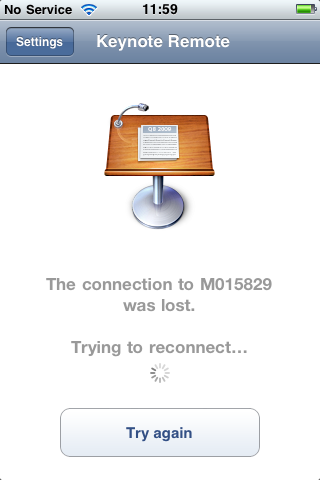
It also only works in WiFi, it doesn’t work on Bluetooth and neither does it work via USB (which though tethered could be useful). WiFi is alright, however it doesn’t always work as expected and does require the presence of a wireless network, that is not always going to be available in every location you need to use this. Even though it worked fine before two recent conference keynotes, due to the use of the WiFi network by others in the conference (ie all the delegates in the hall) I found that the Keynote Remote application couldn’t connect to the Mac over the WiFi and as a result I couldn’t use it!

Not really an App of the Week if it doesn’t work. However I am not sure if this is an actual problem with the App or just a symptom of an overcrowded and overused wireless network at the conference.

So the next time I use it I have either decided to use my own wireless network. Now this creates its own issues. If I also need internet access then using a standalone Airport Express or wireless router will more than likely stop me from doing that. Likewise though you can use Internet Sharing on a Mac to create a wireless network, this is only possible if you have administrative rights over your Mac, something that not every IT department allows. If you do have administrative rights then you can configure your Mac to share its internet connection (even if it doesn’t have one) over the Mac’s Airport to create a WiFi network. If you need internet then if you have a 3G Dongle or USB Stick then this could be used as the internet connection which is shared across the Airport to create a WiFI network and still have internet access. Another option I may use is to use either my MiFi or Joikuspot on my Nokia N95.

TomTom UK & Ireland – iPhone App of the Week


TomTom UK & Ireland – iPhone App of the Week

This is a regular feature of the blog looking at the various iPhone Apps available. Some of the apps will be useful for those involved in learning technologies, others will be useful in improving the way in which you work, whilst a few will be just plain fun! Some will be free, others will cost a little and one or two will be what some will think is quite expensive. Though called iPhone App of the Week, most of these apps will also work on the iPod touch.

This week’s App is TomTom U.K. & Ireland.

Cost £49.99

So you need to know where to go?

You need to know how long it will take?

You need to be able to find an alternative route just in case?

Then the TomTom App could be the perfect app for you…

Okay this is one of the most expensive Apps in the iTunes Store and if you already have a TomTom or GPS then you certainly won’t want to buy this. However if you are looking to get a SatNav then getting one for your iPhone is certainly a real possibility.

Now to use this in the car you either need to get a car charger or the TomTom iPhone Car Kit. Now this adds another expense to the cost.

This is not a cheap SatNav, you can get much cheaper standalone SatNav devices from other places. However if you prefer to carry only one device (or not too many devices) then having a SatNav on your iPhone can make a lot of sense. The TomTom App also works as a pedestrian SatNav (ie when walking around).

The iPhone already has the GPS chip, however in order to make best use of the TomTom App then you really need the 3GS model with the digital compass. You can use the TomTom App on the 3G model however when you are in urban areas with lots of turns it doesn’t really work as you would like it to.

So why not just use the Maps App that comes with the iPhone? Well though the App can use the GPS chip, and can be used for directions, it doesn’t have turn by turn directions that the TomTom can. Though the main reason you don’t want to be using the Maps App is that the maps are not held locally and need to be downloaded from a server. This is fine if you have a good fast 3G connection, less so if you are in a rural area. The Maps App also only works properly when you are connected to a phone network. I found that out when I was in New Zealand recently. I had turned on Airplane Mode on the iPhone and was using the wifi and when using the Maps App the iPhone decided that I was in Kobe Airport in Japan, even though I was in Auckland. When I switched the phone mode on, it then found me accurately in Auckland. It should be said of course that the TomTom would not work in New Zealand either as I only have the UK & Ireland version. Though the TomTom New Zealand App is available.

GPS and location services offer many possibilities for learning, though a SatNav App may not be as useful as other Apps which make use of the GPS chip in the iPhone.

The key question about the TomTom is, does it get you to where you need to by the time you need to, then yes it does. Is it value for money, no it’s not the cheapest option and for a lot of people a dedicated SatNav is probably a better option. Does it offer much for learners? No not really.

Classics – iPhone App of the Week

Classics iPhone App of the Week

This is a regular feature of the blog looking at the various iPhone Apps available. Some of the apps will be useful for those involved in learning technologies, others will be useful in improving the way in which you work, whilst a few will be just plain fun! Some will be free, others will cost a little and one or two will be what some will think is quite expensive. Though called iPhone App of the Week, most of these apps will also work on the iPod touch.

This week’s App is Classics.

So you can download an e-book reader, Stanza (iTunes Store link) for free on your iPhone, you can then download hundreds of public domain books for free.

So why would you spend £1.79 on an iPhone book App with just 23 books in it, all of which can be downloaded using Stanza for free?

Well that is a good question.

I did in fact purchase Classics before Stanza was available so I could use that as the reason (or excuse). However I would still recommend that you get Classics and the reason is that the design of the App, the interface and user experience really make the most of the iPhone. If you ever need to show off what the iPhone can do, Classics is one App which really does impress people and makes them see that this is a device is more than a phone and a Twitter client, you can use it for reading and also learning.

It has a nice page turning effect, you can bookmark where you get to.

The selection is good, I am guessing that there is at least one book that you haven’t read!

It’s not the only book App in the iTunes Store and certainly it’s relatively expensive at £1.79 compared to other Apps, but it does look nice and does a really neat job of allowing you to use your iPhone to read books. It’s not an e-Book Reader as you can’t install other books, but for what it does, it does it well.

WordPress – iPhone App of the Week

WordPress  iPhone App of the Week


I am hoping that this will be a regular feature of the blog looking at the various iPhone Apps available. Some of the apps will be useful for those involved in learning technologies, others will be useful in improving the way in which you work, whilst a few will be just plain fun! Some will be free, others will cost a little and one or two will be what some will think is quite expensive. Though called iPhone App of the Week, most of these apps will also work on the iPod touch.

This week’s App is WordPress  (iTunes Store link)

I have written before on this blog about the WordPress App for the iPhone.

Back then I said

The interface is not fantastic, though having looked a little more into it, if you had an iPhone (it has a camera) you can add photos quite easily; from the iPod touch you can only (obviously) use images stored on the device.

I am reasonably impressed with the app and if it allows me to blog more easily and more often then that can only make my blog better (or will it).

In the end I have made use of it, as well as writing full blog entries I have also used it for ideas for blog posts which I can then use as drafts once I get behind a full size computer.

WordPress 2 is a revised version which looks and works better than the previous version. It also now supports password protected self-hosted blogs.

WordPress is blogging software, that you can either use free via WordPress.com (which is where this blog is hosted) or you can go to WordPress.org, download and install the software on your own server.

Once installed you can then post blog entries. One of the features of the software is you can either have a fully open blog or one with a password; a closed blog allows for example a learner and a tutor to reflect and communicate without letting the rest of the group (and the world) in on that conversation. A blog is different (better) than e-mail in that the reflections and conversations can be tagged, allowing both the learner and the tutor to collate and look at a group of blog entries. With e-mail they can get lost in amongst the body of e-mails we now get and many places limit how much e-mail you can store!

Since WordPress.com took advantage of the WPTouch theme, it can be much easier to view a WordPress blog on an iPhone (or other mobile device). You can also install WPTouch on your own WordPress installation if you are self-hosted.

The WordPress App on the iPhone allows you to post blog entries to your blog whilst on the move.

You can write entries, add images and then either publish direct, or save as a draft.

The App also works offline which makes it useful if you have the iPod touch, as you can write offline and then publish once you are in range of a wireless network.

Simple to use for just plain text, you can attach photographs, but can only embed them if you know soem HTML and already have the image somewhere already online! Not the easiest thing to do with an iPhone, though at least now we have copy and paste!

The WordPress App is a free app and WordPress.com can be used for free, so if you like free then this is one way that you can blog without needing to spend any money.

Blogging software is very much a personal thing, some like WordPress, others don’t. If you already and are happy using another service such as Blogger or Typepad then you are probably not going to swap to WordPress. However if you already use WordPress or are new to mobile blogging then the combination of the WordPress blogging software and the WordPress App has made it quick, easy and simple.

Strip Designer – iPhone App of the Week

Strip Designer iPhone App of the Week

I am hoping that this will be a regular feature of the blog looking at the various iPhone Apps available. Some of the apps will be useful for those involved in learning technologies, others will be useful in improving the way in which you work, whilst a few will be just plain fun! Some will be free, others will cost a little and one or two will be what some will think is quite expensive. Though called iPhone App of the Week, most of these apps will also work on the iPod touch.

This week’s App is Strip Designer.

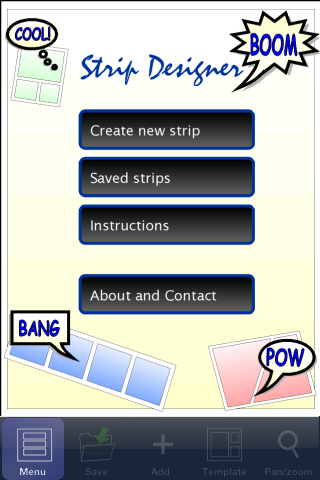
With Strip Designer you can create your own personal comic strip. Add your own photos, apply simple image filters to increase their impact, and add speech balloons and text-boxes. When you are done, save the resulting image to the iPhone’s photo album and email it to friends and family.

Cost £1.79

Comics can be used in many different ways to enhance and enrich learning activites, as well as other processes in the college. Think of it as just another medium to get a message across to learners.

  • Rather than have a written list of instructions for a particular activity, create a comic that as well as text has images that support the explanation of the instructions.
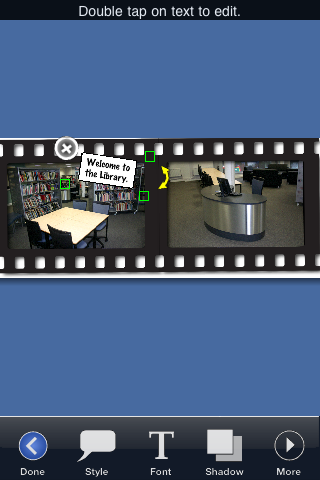
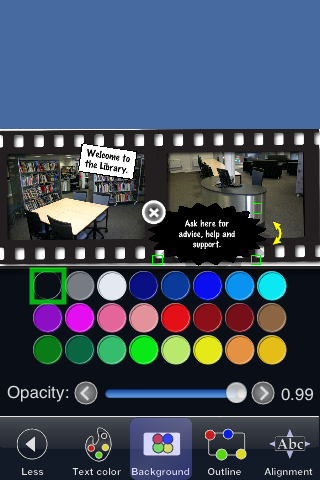
  • Create a comic of how to find help and support in the Library or Learning Resources Centre.
  • Add captions and speech balloons to a photograph to make a informative poster.

There are various comic creation apps for the iPhone, where Strip Designer is different is that it allows you to create a comic strip. Most of the other applications allow you to add comic touches to a single photograph, Strip Designer allows you to use a series of photographs, comicfy them, add captions, speech balloons and then save it as an image, send via e-mail or send direct to Facebook or Flickr.

The interface is quite complicated with various menus and sub menus.

However it doesn’t take long to see that the reason for this is the variety of effects and adjustments you can make to the images, text, balloons and captions.

This is a finished strip. Click the image to see the full size version.

Overall the app works very well, but as with any comic app, the key is the thought and planning that goes into the comic design process and writing before you even open the app. That is something to consider if you want your learners to create a comic as part of a learning activity.

Top Ten Web Tools of 2009

Here are my top ten web tools of 2009. This is a list of web tools which I have used extensively over the last twelve months. Last year I posted my top ten web tools of 2008, here is my new list from 2009.

There were quite a few tools that I have been using and could have been in my top ten.

I really like Screenr, simply put, it is a free web based screencasting application. It captures what you do on your screen and then converts it a web video format and posts a notification to Twitter. You can then download the video as an MP4 movie file. I like it but haven’t made a huge use of it, so that’s why it’s not in my top ten.

A similar concept is Jing, though this requires you to download an application.

iPadio is a phone based podcasting service which has now been supplemented by an iPhone app. Some of the MoLeNET Mentors have made good use of iPadio, I have really used Audioboo.

I use to have strong reservations about Wikipedia, until I realised I used it on almost daily basis. No it’s not my only source, nor is it really an authoritative source, however it is a useful, quick and easy source of information.

I do like Prezi and have seen some excellent presentations using Prezi, however despite liking it, I have never used it in anger! Therefore it does not make my top ten.

I initially couldn’t see the point of Cloudworks, however ALT-C 2o09 and Ascilite 2009 demonstrated the value of Cloudworks as a repository of information, links and comments on conferences and keynotes. I will see how I use it in 2010 to see if it makes the top ten then.

Probably in at number eleven was Slideshare. I used it much more in 2009 than in 2008. However for me the main issue was that my presentations don’t really work on Slideshare as they are mainly pictures and single words, and that’s probably why it’s not in my top ten.

This is an e-learning blog and I should really mention Moodle, I use Moodle everyday as part of my day job, however I see this more as an institutional service rather than a web tool.

There were others which are very popular and didn’t even come close, the one you probably have heard of is Facebook. I have hardly used Facebook this year and am considering as others are in closing my account down.

In last year’s list, but not in this year’s are Qik, Remember the Milk and Crowdvine. I did use Qik, but nowhere as near as much as I did in 2008. The main reason was that thw quality was good enough for people to go “wow” but that was about it. The “live” bit was okay, but not good enough to use on a regular basis. It was just as easy to record video on the iPhone and then upload to TwitVid or YouTube. I have though just downloaded the version for the iPhone 3GS and that may make a difference to how much I use it now. I still use Remember the Milk, but not as effectively as I would like, so more work needed there from me and them. I also did use Crowdvine at ALT-C 2009 and the scheduling was useful as was the communicating, but there was nothing new there compared to 2008 and therefore it dropped out of the top ten. If the social networking intergration was better I am pretty sure it would have probably creeped in. However it was too slow in picking up Twitter posts, Flickr photos and blog posts; this is very important for a conference networking tool.

Anyway onto the top ten for 2009.

10. Evernote

Now why would you use Evernote when you can use Google Docs? Well What I find Evernote is good for is note taking whereas I use Google Docs for writing documents. With Evernote though, you can use it through apps offline, through a web interface in a browser (useful on shared computers), in an iPhone app (iTunes Store Link). I like how you can add screenclips, screenshots, photographs and audio to your notes too. This blog entry was started on Evernote for example. It has great uses for learning too, learners can use it to store notes and with the ability to have different notebooks and tagging, will make it very easy to find notes when it comes to writing assignments or revision.

9. Etherpad

This is also one of those services which you may think, why not just use Google Docs? Well Google thought it was different enough they bought the company! Etherpad is a simple concept which works really well. Create a pad, share the URL and then everyone can help create a shared document; where it is special is that you can do this simultaneously. So as you type, I can type, you will be able to see what you’re typing and what I am typing too. This is brilliant in meetings and at conferences where you can share links, ideas, notes, comments together. In the past a group in a meeting may have had separate notebooks (real or virtual) now with Etherpad you can share a single electronic notepad. The MoLeNET Mentors have used it with great effect as a shared notebook. Imagine a study group of learners using Etherpad to share lecture notes, links, resources, comments, drafts.

8. Shozu

Shozu was my number five web tool last year, it has dropped a few places, but I still use it on a regular basis. What Shozu does for me is when I ever take a photograph using my Nokia N95 I can immediately upload the image to Flickr. With a little preparation I can add relevant tags (or edit tags on the fly) and it will also add the geo-data using the GPS on the N95. What this means is that when I am at an event I can take lots of photographs and people who want to see what is going on can easily see from my photographs. It also allows me to capture my day in a kind of lifestream giving me a record of what I have done, who I have met and where I have been. I also use Shozu to upload photographs and video to Twitter services such as TwitPic and TwitVid. I have also used it to upload content to my blog.

7. Audioboo

This has been one fun app to use on the iPhone. So what is Audioboo? Well it’s a service I first saw demonstrated at the All Together Now event at Channel 4. To put it simply it is an App (iTunes Store Link) on your iPhone that allows you to record an audio recording, add your location, a picture and upload the lot to a website. This has some real  potential for learning activities. As you have an account on the website (not essential but recommended) your recordings are kept together and also have an RSS feed as well, which people can subscribe to via iTunes or other podcasting applications. I have mainly used Audioboo to show people what Audioboo can do. I hope to in 2010 use Audioboo to do a regular short podcast.

6. Ustream

So you want to create video, live video? You want to share that live video with lots of people? Well yes you can stream from your computer, however if you have limited bandwidth then this can be a problem. Services such as Ustream allow you to easily stream live video across the web to many different users, even if you have limited bandwidth such as over a 3G connection. I used Ustream a few times over 2009 to stream keynotes from the Plymouth e-Learning Conference, the VLE is Dead session live from ALT-C 2009 and also various MoLeNET Live “online conferences”. There is now an iPhone app so you can stream live from your iPhone 3GS. Simple to use, easy for people to interact with, live video streaming from UStream is a great technology with lots of learning potential. Learners in the workplace could stream from their work or access live streams from lecturers in college or in the field (or literally in a field).

5. Google Docs

Last year Google Docs scraped into my top ten at number ten. This year I have put it in at number five. The main way I use Google Docs is to write a document that I know I will be working from on multiple computers. Now I know I could use a USB stick, but it assumes I have the same application on all machines, which is not always the case. For example my work machines have Office 2003, fine, but my Mac has Office 2008 (the newer version), my home Mac only has Pages, my Samsung Q1 only has Open Office as does the Asus EeePC. Sometimes the PC is runing Office 2007. Using Google Docs allows me to have a single copy of a document, share that document and export or print in variety of formats. For example I can download my document as a PDF. I have used Google Docs many times throughout 2009 to work on documents with other people from across the world and that has proved how useful this service is to me. Learners will find that using Google Docs as the service to use in writing their assignments (especially group assignments) will avoid the headaches of different versions of Word, losing USB sticks, inability to access network drives from outside college, etc, etc…

4. Ning

So you want to create your own social networking service? Why not use Ning? Create your own creepy treehouse!!! I used Ning a fair few times in 2009 in the main in supporting events I was running or attending. I used it initially for the ILT Champions Informal Conference and the Fringe for the Plymouth e-Learning Conference. It allowed delegates at both events to communicate, share pictures, video, write blog posts and have discussions. I was surprised by how well they worked. I am currently using Ning to work with various communities, and in 2010 it will be the service used by the Becta Technology Exemplar Network to share and collaborate. I don’t actually see Ning as a “social networking” service as such, more as a web site that I don’t need to build! For learning, it has many uses especially when you want students from multiple institutions to collaborate and work together.

3. Flickr

Last year Flickr was number six, this year it has climbed three places to number three. have nearly 2700 photographs on Flickr up from nearly 1500 last year, that means I have uploaded nearly a hundred photographs a month, or three a day! They cover a range of topics and events. From an events perspective I think Flickr adds so much more to an event. It can capture the event in ways that can’t be caught in any other way. Flickr is not only a great way of storing photographs, also a great place to find photographs, and many images on this blog are from photos from Flickr which are creative commons licensed to allow me to use them on the blog. Flickr is a great way to store photographs and to find images.

2. WordPress

Though it’s all about quality I did publish 232 e-Learning Stuff Blog posts last year… I use WordPress.com and have been very pleased with it. One of the key reasons that I like WordPress is that it has made it very easy to post video to the web. Now YouTube is great and all that and I do use it, however with the ten minute limit, this can be quite constraining. WordPress with the (paid for) Videopress upgrade does a very good job of converting my films into Flash Video. The quality is certainly much better than YouTube, and I can embed the video on other sites as well. It handles the bandwith too, with the VLE is Dead video the blog was delivering 40Gb of video that first week! I use a WordPress.com blog for many reasons, the main is convenience. As it is web based all I need is a browser to write a blog entry, though there are other tools such as Shozu and the WordPress app on the iPod touch which also allow me to write. The stats are useful in finding out how people are finding the blog, likewise comments allow feedback. Blogs can be public like mine, or private, restricted to say a group, or a tutor and a learner.

1. Twitter

Last year Twitter was my number two web tool, beaten there by Jaiku, which took first place. As you can see Jaiku doesn’t even make the list this year. For me 2009 was the year that Twitter became even more useful as a tool to converse, collaborate, share and communicate. The reason that Twitter is my web tool of the year is down to a variety of reasons.

Conversations: This is what Twitter is all about, the conversation, the community, the Water Cooler moment, the coffee break.

Backchannel: At conferences, the Twitter backchannel can be fantastic, but can also be a nightmare! I really find that the Twitter backchannel can enhance and enrich the social and networking side of a conference, improve communication and add to sessions taking place. It allows for the converation to continue after a presentation or keynote and can also widen that conversation to outside the conference.

Links: In many ways for me and others Twitter has almost replaced RSS, I find out much more information and useful links from Twitter now then I do any other source.

Mobile: The mobile element has made Twitter a much more effective and efficient tool. The fact that I can now easily access and contribute to Twitter from my iPhone has increased how much I use, engage and interact with Twitter. It’s so easy, I access it on the train, waiting in line for stuff, at events, when I am away. When I was in New Zealand, the lack of connectivity (and the 13 hour time zone difference) made me aware of how useful and important Twitter was to the way I worked.

Twitter also matured this year with the addition of really useful tools such as TwitPic, TwitVid and TweetMic. TwitPic is a simple tool that allows you to post pictures to Twitter. TwitPic really made the news when an airliner was set down on the Hudson River in New York. TwitVid took TwitPic one stage further and allowed you to post video to Twitter. And if you are camera shy then TweetMic allows you to post audio instead.

Though I know that one day Twitter will die, for me 2009 was the year of Twitter and was my number one web tool of the year.