All posts by James Clay

More iPadding

Okay so we coming up to lunch here at the RSC SW Summer Conference and I only have my iPad. Am I missing my laptop?

To be honest no.

I will say typing is a little more challenging depending on the room you are in. makes me realise I might need to get a case that allows me to slope the iPad for easier typing. Or I should have bought my Bluetooth keyboard as well ( though that would have meant more to carry).

It would be nice to have the camera adapter then I could easily upload photographs to the iPad. Having said that I guess I should have set up my Eye-Fi to wirelessly upload pictures to my iPad using the Eye-Fi App, though I am not sure if that is possible. Something to look into for the future.

Osfoora HD is working well as my Twitter client, but I have been using my iPhone to take some photographs and upload them through the iPhone Twitter App.

Working well and showed it off to a fair few people over coffee.

iPadding

So after writing a post about using an iPad at a conference, here I am at the RSC SW Conference in Exeter and I have left my laptop back at home and I have only bought my iPad.

Will it work for the whole day?

Will I be able to use it to make notes, check URLs, Twitter and Blog?

What about wifi? Well I have bought my Google Nexus One with me with it’s portable wifi so hoping that will work if the wifi doesn’t. I also have the iPhone as a backup.

I am not presenting so that is one less thing to worry about, though I can present with the iPad as I have the VGA connector.

It will be interesting, more later…

iPad Conferencing

So here’s a question, will Apple’s new iPad make a significant difference to the way that delegates will behave and work at conferences?

It’s still (very) early days for the iPad, and even though it has been on sale here in the UK for less than a month, many people I have spoken to are looking at the device and wanting to buy one. Equally there are others who won’t touch it with a barge pole!

Handheld Learning (now happening in January) will be an interesting conference for many reasons, one of the things that will make this conference specifically interesting will be the number of iPads at the conference. This year if you register early you will receive a free iPad. Now this means at the conference itself, a large proportion of delegates will be bringing an iPad.

So how will they be using that iPad and what difference will it make to the conference?

I have previously on this blog written about amplified conferences and social reporting. In the article I noted at the JISC Experts meeting that:

We used Twitter quite a bit today, so much so that the tag #jiscexperts09 became a trending tag on Twitter.

Lots of comments, discussions and conversations. Some went off tag and continued outside the event.

A really useful and interesting back channel to what was happening in front of us.

I did note the limitations of using Twitter at conferences as well as the advantages.

If you are using Twitter to allow the delegates to converse about the event in a kind of back channel then the fact they are not using it, is probably not a bad thing, as they are probably interacting face to face.

I made the suggestion back then that:

One of the downsides of Twitter (which is also a plus point) is that it is just text and only 140 characters of just text. If you did use social reporters then they could also use other tools to help capture the event for both the delegates and others. They could be uploading presentations to Slideshare, posting photographs to Flickr, pushing videos to YouTube, broadcasting live using Qik, blogging, recording to Audioboo, etc…

So how would this kind of thinking relate to the iPad?

Well the iPad does allow people to use Twitter, but does not have a camera, so stuff like Qik or use of Flickr is not possible; so there are restrictions on how the iPad can be used to amplify the conference.

If lots of delegates have an iPad, then you would expect the back channel to be quite active, but would it be any more active than it is already. I don’t think it will be. Those already using Twitter on other devices, will either continue to use those devices or will switch to the iPad. The key question is will the iPad encourage and facilitate those who don’t use the back channel or use it rarely to engage with the conversation if they had an iPad. Personally I don’t think there would be a big impact, a few delegates may join in with the conversation as they now have a connected device, but I can’t see why others would start to join the conversation. If they can’t see the benefit of using Twitter in this way I can’t see them changing their behaviour as they are now holding an iPad.

However Twitter is just one way for delegates to engage with the conference and is most certainly not the only way and the iPad then can have a much greater impact.

Live conference programme

We are use to having the conference programme handed to us in paper format. People scribble, fold (and generally in my case) lose it. Imagine an iPad App that holds the whole conference programme. One that can be updated if things change, links to presentations and recordings either before, during or after the conference. It would be nice to be able to star sessions so that you don’t miss them,

Venue Maps

Interactive maps of the venue so you don’t get lost! Some venues are very compact and it is impossible to get lost, but at large events or those on university campuses it is very easy to get lost as you trek miles (okay yards) to find the room in which the session is taking place. Add in GPS tracking and you could “track” other delegates!

Sharing contact details with other delegates

There is already an iPhone App for the purposes of sharing contact details. Bump already allows you to very easily over the internet to share contact details. In order for it to work though you do need to enter in your contact details.

Shared note taking

Anyone who has used an Etherpad clone will realise how useful shared note taking can be between delegates at a conference or meeting. Ensuring URLs are correctly written, e-mail addresses, references, questions for the end of the session, etc… It saves everyone making their own version of notes from a session. It is also useful for those that couldn’t make the session, say they were in a parallel session.

Of course anyone who has an iPad who has tried any Etherpad clone will realise that Etherpad doesn’t work on the iPad. Nor do most wikis I have tried and Google Docs.

Evernote has an iPad App but in order to share a notebook you need to have Evernote Premium which is not something everyone will want to pay $5 per month or $45 per year for.

There are some Apps that allow you to collaborate on a virtual whiteboard, but this is not the same kind of functionality as the note taking capabilities of Etherpad.

Shared whiteboard

The Groupboard App allows delegates with iPads to share a common whiteboard to make “notes” and draw diagrams. The free version allows up to five people to collaborate, anymore and you have to pay.

Live streaming

Many conferences stream keynotes and sessions live over the internet. Allowing remote interested parties an insight to the conference and join in over Twitter or similar channels. Streaming sessions is also useful delegates attending the conference, for those that can’t get into sessions which are full, those that are running stands, those networking or for those sessions which start first thing in the morning! One consideration that conference organisers may want to consider is that standard Flash based streaming doesn’t work on the iPad or the iPhone. If you use services such as Ustream it is possible to send an iPhone friendly stream that can be viewed by the Ustream App.

Live blogging

Blogging about keynotes and sessions is a great way to make both notes and reflect on the key points. Adding images to the live blog can make it real for those remote readers and remind those who were there what happened.

There are certainly many ways in which you can live blog using the iPad, if you have a WordPress blog there is the WordPress App for example.

Another way of live blogging would be to use a Posterous blog, this can just be e-mailed from the Mail App on the iPad. You can attach images and video.

So how do you get images and video on the iPad, considering it doesn’t have a camera. By using the iPad camera connection kit, you can easily add images and video from a digital camera.

Key is that the blog posts are tagged with the conference tag.

Reflective blogging

Blogging after the presentation or keynote, during a break or back at the hotel, the iPad again makes an ideal tool for this.

Enhanced presentations and keynotes

Presenters at a conference where the majority of delegates have an iPad will have the opportunity for a more enhanced conference experience in relation to viewing the keynotes and presentations.

I have been using Twitter during various presentations, not always successfully but when it works it works well. The ability to deliver live links, images and information to delegates can really enhance a presentation make it more relevant and useful. You can also pose questions to the audience and with a voting platform or polling tool you will be able to view results.

Or just get them to raise their iPads….

This can certainly engage the audience. Using services like Twitter allows presenters to ask questions that delegates can answer via their iPad is another way of asking questions.

Enhanced workshops and debates

As with presentations, using an iPad at a conference would allow workshops to be a more enhanced experience. The iPad could be used to both deliver key parts of the workshop and as a tool to allow workshops participants to collaborate and work together. Most workshops require delegates to feedback, undertaking this activity through the iPad (say via a blog) would allow others in the workshop to comment on the feedback. Likewise it would also others (who did not attend) to see the feedback.

Using an iPad during debates for votes and questions as well as adding to the debate virtually would make for a deeper debate in some circumstances.

Shared bookmarking

From my experience, a conference is full of useful links, blogs, articles. Bookmarking services such as Delicious allow delegates an easy way of adding and sharing links.

There is an iPhone App (which works on the iPad) and an easy to add bookmarklet to Safari. The only real downside is that Copy and Paste is not as a easy as with using a standard computer.

Key is that the links are tagged with the conference tag as well as other relevant tags.

This will allow delegates to find links later back at base.

Flickr feed

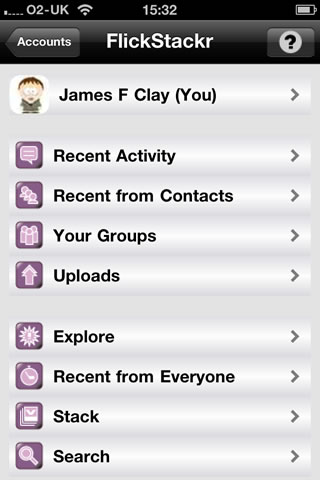
As well as blogging you could also upload images to Flickr, something like FlickStackr can be used for uploading images from the iPad.

So how do you get images and video on the iPad? As already said by using the iPad camera connection kit, you can easily add images and video from a digital camera.

Key is that the images are tagged with the conference tag.

Summary

Many of the above points can also be useful for teaching and learning as well as conferences and events. Maybe the basis of a future blog post.

Anyone who has read this far will realise that none of the above is in fact dependent on all delegates having an iPad. All of the above can be easily done now even if delegates only use their laptops or their phones. In some cases it will be easier with a laptop (look at Etherpad or a conference wiki). However the key isn’t it in fact with the technology but the culture of both the conference organisers and very importantly the conference delegates. I have attended many different conferences where use has been made of social networks for the conference, a conference wiki, cloudworks and more.

However my experience is that the majority of delegates do NOT participate in these extra-curricular networks whilst at the event, some do before and some do afterwards, but generally very few do during the actual event. It is key for any of the above to work that giving each delegate an iPad isn’t sufficient, they also need to be motivated to participate over and above been a passive delegate at the conference. That is a responsibility for both the delegates and the conference organisers.

National Trust – iPhone App of the Week

There is much debate at the moment about the growth of Apps versus the web. Especially paid apps versus free web content.

But, after 15 years as the net’s publishing platform of choice, a movement is growing that wants to put the web back in its box.

Blame the ‘app’. With little prior culture of mobile web consumption, publishers have barely given their HTML efforts five minutes in the sun before preferring to code snazzy, custom, closed interfaces instead in the likes of Xcode and Objective-C, in iPhone’s case.

This isn’t really the article for this debate (maybe later) however the reason I bring this up, is this week’s App of the Week, which is about an App that replaces a web site. I don’t think this is an issue, but does cloud the debate over Apps in that some Apps are there to complement web content and others replace it with an App that costs. Anyway onto the App…

National Trust – iPhone App of the Week

This is a regular feature of the blog looking at the various iPhone and iPad Apps available. Some of the apps will be useful for those involved in learning technologies, others will be useful in improving the way in which you work, whilst a few will be just plain fun! Some will be free, others will cost a little and one or two will be what some will think is quite expensive. Though called iPhone App of the Week, most of these apps will work on the iPod touch or the iPad, some will be iPad only apps.

This week’s App is National Trust

Fancy a day out and wondering where to go? Want to visit glorious coastline, wander through wild countryside, relax in exquisite gardens or explore historic houses? Find a National Trust place near you, wherever you are in England, Wales, and Northern Ireland. See it on the map, find out opening times, prices and facilities and access information. Find nearby places, or choose from an A-Z list.

Free

All the information in the App is available online through the National Trust website.

So why on earth would you use the App?

Well though the website is fine, it’s a complicated site and hasn’t really been designed for a small mobile screen, despite the superior browsing capability of the iPhone.

Using the App means not having to worry about the busy web site and can focus on the content.

Well if you have an iPod touch and no connectivity, then this App does work offline in a manner, though you can access all the information (so it’s like a virtual National Trust handbook), but the maps don’t work!

The main reason for using the App is that it is a better experience than using the web site.

The App will find National Trust properties close to your location, using the location based capability of the iPhone (and iPod touch), though as mentioned you will need an internet connection to “see” the map.

It will give you information about the property and details on the facilities on offer.

You can browse an alphabetical list too.

Of course this is one useful App if you are a member of the National Trust, it’s also useful for when you are on holiday.

However I also think it has the potential for travel and tourism courses on looking at particular properties for the basis of activies for that subject.

  • Create a marketing plan for a National Trust property.
  • Devise a tour of National Trust properties in a particular region.
  • Undertake a SWOT analysis for the National Trust on a property close to the college.

If you have other ideas please let us know in the comments.

Though if you live in Scotland (or are going on holiday there) do take note…

Please note, this app does not include information from the National Trust for Scotland (NTS). The National Trust and NTS are two separate charities, run independently of each other. Our app is built using the data from our handbook, and as this does not include any NTS properties, we are unable to include this information.

Ah well.

Overall a nice App that does what it does well.

“we’re were selling one every three seconds”

So Apple have sold two million iPads in less than two months!

So what I hear you cry?

Well…

For comparison purposes, it took over two years for Apple to sell its first two million iPods, while the original iPhone took on the order of four months to reach the two million milestone.

This does demonstrate the popularity of the device, though it doesn’t demonstrate the longevity.

People are certainly buying them though and if my experience is anything to go by they will use them too.

PAT Testing…

The future of mobile learning has to be in user owned technology.

From a sustainability perspective, no educational institutions (especially in the current economic climate) would be able to provide all learners with a mobile device or a laptop – even if they are getting cheaper!

However… sometimes the question of PAT testing student equipment arises from someone within the organisation. It is then decided that students can only bring in their laptops if they have been properly PAT tested or they can bring their devices in, but can not plug them in or in extreme examples students will be banned from bringing in their own devices.

I have read and checked the relevant legislation and I have phoned the HSE to confirm this.

There is NO legal requirement to PAT test student equipment, a formal visual inspection is sufficient under the current legislation.

See more details in this HSE leaflet.

The HSE were quite clear that they would not expect colleges to PAT test student devices.

Think about hotels for example, who NEVER PAT test guests personal laptops. Read this leaflet which has more information.

However… having said all that there may be good reasons to ensure that student equipment is PAT tested.

If you have an old building with rubbish wiring, it might make sense (from a risk assessment perspective) to PAT test.

Some insurance companies REQUIRE PAT testing, but check with your insurance company.

The answer to your H&S Officer is provide them with a proper risk assessment and the documentation from the HSE. Ask them to then explain why PAT testing is required beyond what is required under the legislation?

Or…

Ask H&S to set up PAT testing sessions for students, they want to do it, let them do it. Give them an indication of the session frequency required.

Or…

It actually doesn’t take that long or too much effort to train people to PAT test equipment, even the testing equipment isn’t that expensive. Train all relevant staff, Learning Resources, IT Technicians, other Technicians, teaching staff!!!! and get them to do the PAT testing.

Finally ignore all the “smart” people who tell you that PAT testing is an example of redundant acronym syndrome syndrome.

Disclaimer: ALL information containing in my post is for informational purposes only and should never be construed as legal advice. For proper legal advice you should consult a lawyer.

e-Learning Stuff Podcast #051: Engaging with the VLE

How can you more effectively use the VLE to enhance and enrich learning? How do you engage staff to ensure that they use the full functionality of the VLE? What models can you use to demonstrate to staff how they can progress their use of the VLE? James, David, Mick and Ron discuss how the VLE can be used, how to use it more effectively and provide tips and guidance on engaging staff to use it.

With James Clay, Mick Mullane, David Sugden and Ron Mitchell.

This is the fifty first e-Learning Stuff Podcast, Engaging with the VLE

Download the podcast in mp3 format: Engaging with the VLE

Subscribe to the podcast in iTunes

Shownotes

100 ways to use a VLE – #9 Peer Assessment

We are often fearful of getting our peers to judge us, is that because we fear they are incompetent at assessing us, or that they are so much like us that they will do it honestly and openly and notice all our hidden flaws?

Probably for the latter reason peer assessment by learners of learner is such a valuable method of assessment. Learners giving each other formative or summative feedback to each other can be a very positive activity, even if it is (to the learners) somewhat daunting.

There are many advantages to peer assessment. It can enhance learning through learners having to not convince you that they understand a topic, but also ensure that their peers understand the topic too. It allows for a greater depth of self-reflection by learners on the learning process. Peer assessment is daunting, but as a result can increase the confidence of learners as they need to work with each other. This working together builds social interaction across a group of learners and a support mechanism.

There are some issues and fears in regard to peer assessment. It can be an administrative nightmare. It is dependent on learners all taking part and not all will want to, some may not want to give the same level of effort as others. Conflict and arguments can arise, unlikely to happen with other forms of assessment, and will the learners have the skills and the confidence to resolve these conflicts. Some staff think that it will be challenging to do and that “exam boards” may object. Even some learners may object as they see the assessment process as an end and not as a learning process in itself.

One of the key features of peer assessment is communication and though e-mail and SMS is one way, the VLE allows for the communication to be more easily aggregated, sorted and assessed.

Any piece of peer assessed work, like any other piece of assessed work, needs a detailed briefing, time to discuss, both face to face and online, and guidelines and rules need to be in place. Once more the VLE is an idea vehicle to provide the online space for the briefing, online discussions, guidelines and rules. Providing a dedicated space on the VLE for the assessment will make it easier for learners to compartmentalise the assessment from other parts of the course.

Using the VLE allows learners to undertake parts of the peer assessment at a time and place to suit them; in college, at home, in the workplace or drinking coffee!

Peer assessment offers a different process of assessment that engages learners, builds relationships and improves learning. By undertaking that peer assessment through the VLE ensures that it is easier for learners to work together, discuss, share and refer to in the future.

Edirol R-09HR 24bit 96kHz Wave/MP3 Recorder

We have been using the Edirol R-09HR 24bit 96kHz Wave/MP3 Recorder for some time now and I use it personally too for making audio recordings.

The reasons are:

Records natively to mp3 so need to convert any recordings.

Can record to WAV, useful for those times you want an uncompressed recording for editing and later compression.

It’s robust.

The microphones have been calibrated therefore are excellent.

You can use external microphones with them.

They record to SD Cards. This means that once a student (or member of staff) has made their recording, they can remove their SD Card and pass the Edirol onto the next user. This does mean you don’t need as many for field recordings. It also means you don’t need a computer handy to “take” the recordings off- having said that it does have a standard mini-usb connection if needed.

They run on AA batteries for what seems like forever.

They will record one on one interviews and whole room conversations.

Yes, they do cost more than your average audio recorder, but they are in my opinion real value for money.


Vuvuzela 2010 – iPhone App of the Week NOT!

Vuvuzela 2010 – iPhone App of the Week NOT!

This is a regular feature of the blog looking at the various iPhone Apps available. With the release of the iPad in the UK, this series will also now cover Apps for the iPad. Some of the apps will be useful for those involved in learning technologies, others will be useful in improving the way in which you work, whilst a few will be just plain fun! Some will be free, others will cost a little and one or two will be what some will think is quite expensive. Though called iPhone App of the Week, most of these apps will work on the iPod touch or the iPad, some will be iPad only apps.

This week’s App is Vuvuzela 2010

Finally available, the Vuvuzela! The hype for the 2010 World Cup in South Africa.

Free

This is one App you don’t want to get and if you do you will find that you have no friends left…

It recreates the “annoying” sound from the World Cup in South Africa. Just the perfect App for classroom lessons on the World Cup!