100 ways to use a VLE – #2 Noticeboard

A noticeboard is… what, a board with notices on it!

Okay…

Well it’s a little more than just a board with notices on it. It’s a way of giving learners information about their course, their learning, their assessments and other college related information.

The problem with a physical noticeboard is that it takes a fair amount of time to keep it updated, valid and accurate. Another key problem with a noticeboard is that it is constrained by its physical location, you can’t access the noticeboard when the college is closed for example, or when you are busy elsewhere in the college (eg in a class).

A virtual noticeboard on the VLE can remove many of the issues with a physical noticeboard.

Learners will be able to see which is the newest notice (it probably is the one at the top of the list of notices).

Some VLE noticeboards allow you to configure when a notice will appear. This will allow practitioners to post notices in advance and they will “magically” appear on the right date and time. These same noticeboards also will “magically” remove the notice once it is out of date. This makes it so much easier for practitioners to administer the noticeboard, it makes it easier to keep in the information current; it also ensures that learners only see the right material and not stuff that is out of date!

Logging tools or stats on the VLE allow the practitioner to check who has actually accessed the noticeboard – obviously it can’t tell who has read it (but then you can’t do that with a real noticeboard). The other aspect though of a virtual noticeboard on the VLE is that learners can post comments (or replies); handy if they need clarification or don’t have a clue what you mean!

Due to the virtual nature, it is possible to edit and add to existing notices, useful if deadlines of assignments change, say due to snow.

The most obvious advantage is that learners can choose when to read the noticeboard; they can choose at a time and place that suits them. With a physical noticeboard, they must make an effort to be in the same physical location as the noticeboard and take the time to read the notices.

They will forget…

With a noticeboard on the VLE they can go back and check the notice.

With a noticeboard on the VLE, and if configured correctly, they might be able to grab an RSS feed of the noticeboard notices; this can then be embedded into their iGoogle, into their Facebook stream, on their phone as SMS, through their PS3 on their TV.

Of course you can enhance your notices with audio and video; try doing that on a physical noticeboard! As you can embed video into notices or attach audio recordings; suddenly your notices can be come more engaging.

Another feature of many VLEs is interactivity; now add that to your notices and you will be able to get immediate responses from your learners about your notices. These could be text responses or polls.

Having said all that it would also make sense for the learners to be aware of the virtual noticeboard and as a result you may want to put a notice on the physical noticeboard to check the virtual noticeboard on the VLE!

Photo source.

Is the future of learning in TV?

Despite the growth of the internet, television is still a technology which most people have, most people use and dominates a lot of peoples’ lives.

Even the most popular videos on YouTube are predominantly from television programmes.

This week sees the start of Seesaw TV, an online service that allows you to catch up with TV and view programmes from an archive of over 3000 hours of footage. Seesaw is funded by advertising – viewers see unskippable 60-second ad breaks before and during each show.

The BBC said it was also considering releasing apps later this year for its popular iPlayer service.

So despite the growth of the internet, television is still big and still predominates people’s time. For some young people, too much time…

Video games, mobile phones and TV are keeping children up at night, answers to a BBC questionnaire suggest.

Intel believe that television will still be at the heart of our homes in the future.

Justin Rattner, Intel’s chief technology officer, told BBC News.

“TV will remain at the centre of our lives and you will be able to watch what you want where you want.”

He continues…

“People are going to feel connected to the screen in ways they haven’t in the past.”

The statistics of YouTube are amazing.

In September 2008 I reported on my blog that 13 hours of video were been uploaded to YouTube every minute!

Now 20 hours of video are being uploaded every minute!

I rarely sit down and watch television these days, but that is just me, for others, they love the Apprentice, Dragons’ Den, Doctor Who, Merlin, etc… This is very apparent from dipping into Twitter, as tweet after tweet is about a particular programme.

It’s not as though I don’t watch television programmes, but am now more likely to watch them recorded via a laptop, an iPod or on the computer. I rarely watch live TV anymore and when I do I get confused as I can’t rewind or fast forward through the adverts…

So what about our learners?

Are they just watching video on the internet or do they mainly watch television? There certainly has been a huge growth in video on the internet, but likewise there has been a huge increase in the number of TV channels available.

To ignore video and its usefulness in enhancing teaching and learning is in my opinion a mistake. Video has huge potential to engage learners and to allow them to see and hear about things and stuff.

Video has the ability to stimulate discussion and debate (think of the impact of TV on Twitter). A video clip can be used to start of a learning activity that will result in verbal conversation or even a written activity.

Video does not replace teachers, neither does the internet. They are merely tools that allow for a more enhanced and enriched learning experience.

Photo source.

USB Microscope

There are many different types of cameras on the market, and a fair few USB cameras out there.

At Gloucestershire College we have just invested in some new USB cameras, however these are not standard USB cameras, these are USB Microscope cameras.

Install the software, connect the USB microscope and then place whatever you need under it. Once in focus and or zoomed in you can then take an image or capture a video.

You also have the possibility of a live preview, therefore showing what is happening live under the microscope through a data projector, even to an interactive whiteboard.

This is an eyebrow.

There are many uses for this in various curriculum areas.

The obvious choice is Biology to look at biological specimens under the microscope.

Hairdressing and Beauty Therapy have many uses for looking at hair and skin in much more detail.

Computing can stick the microscope into a PC or over a circuit board to see it in more detail.

Engineering can use it to look at issues with components or engine parts.

There are a wealth of uses, what would you use it for?

AudioBoo – iPhone App of the Week

AudioBoo – iPhone App of the Week

This is a regular feature of the blog looking at the various iPhone Apps available. Some of the apps will be useful for those involved in learning technologies, others will be useful in improving the way in which you work, whilst a few will be just plain fun! Some will be free, others will cost a little and one or two will be what some will think is quite expensive. Though called iPhone App of the Week, most of these apps will also work on the iPod touch.

This week’s App is AudioBoo.

Update: App is now called AudioBoom.

Audioboo is an application for recording and sharing your voice with the world. This free version allows you to create audio up to 5 minutes in length and post that to your own account on the web. You can add titles, tags, geolocation info and a photo to the recording before you upload it and we’ll save all that with the file. The audio can then be shared with your followers or via Facebook, Twitter & more social networks by managing your account at http://audioboo.fm.

In addition, you can also listen to featured, followed, popular, recent and nearby boos in the app and view photo & location details if attached.

All audio is converted to an mp3. You don’t need to create an account to start recording but it’ll certainly help you keep track of your boos in the future.

Free

This has been one fun app to use on the iPhone. So what is Audioboo? Well it’s a service I first saw demonstrated at the All Together Now event at Channel 4.

To put it simply it is an App on your iPhone that allows you to record an audio recording, add your location, a picture, tags and upload the lot to a website.

This has some real  potential for learning activities. As you have an account on the website (not essential but recommended) your recordings are kept together and also have an RSS feed as well, which people can subscribe to via iTunes or other podcasting applications.

For example, imagine that your Travel and Tourism students are out on a field trip, they can record an image of each tourist destination, they can record a description,  add relevant tags, the iPhone adds GPS coordinates, and the lot is uploaded to the web. Back at college they can create a media rich presentation using the recordings and images and create a map using the geo-data.

It also acts as a simple mp3 recorder, and these mp3 files are then available to download from the Audioboo website.

I have mainly used Audioboo to show people what Audioboo can do. I hope to in 2010 use Audioboo to do a regular short podcast.

I do like Audioboo, it is such a simple concept, but executed really nicely and has the potential to be a very effective tool for learning.

Update: App is now called AudioBoom.

Windows Phone 7 Series

Lots of news coming out of the Mobile World Congress.

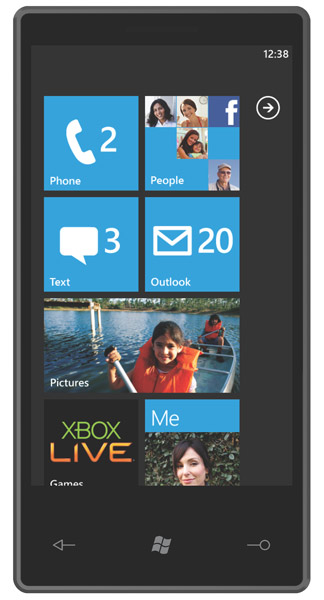
Big news from Microsoft is the Windows Phone 7 Series announcement.

Throwing everything that has gone before, everything is brand new, and from first impressions this appears to be a good move from Microsoft and a response to the iPhone (and possibly Google’s Android too).

No more Start button, no more replicating the Windows desktop on a mobile device. I never thought that replicating the desktop on a mobile device was ever a sustainable idea. Yes those familiar with the desktop interface *may* find it comforting, but as I did with previous versions of Windows Mobile, once you get going with the mobile device the limitations of a desktop interface start to annoy you.

Apple decided with their iPhone (and with the new iPad) to specifically not replicate the OS X desktop interface, but use a new interface, one that works well and for most people is pretty intuitive.

So what else does Windows Phone 7 Series offer. It’s interface has many similarities with the Zune (the Microsoft music player that isn’t available in the UK). It’s been kept very simple, no gloss here, no shine, though transitions are smooth and elegant.

The world hasn’t passed Microsoft by, they have realised that the Xbox is popular with gamers and that social networking is quite a big thing. As a result both these features are embedded into the phone.

So how will this fare in the competitive marketplace for modern smartphones? We’ll have to wait and see…

To block or not to block

Very often in education it is decided that the best way to “protect” learners is to block as much of the internet as possible. This is more often than not the policy in schools, nearly just as much in Further Education, and even in Universities.

I have for many years that technological solutions such as blocking are a blinkered approach to e-safety and that educating and training learners in how to use the internet safely and to be aware of the issues relating to digital identify was a much better and superior answer. If you block and lock down the internet, it can result in a false sense of security, this could result in learners not been fully protected.

It would appear that this viewpoint has been echoed in a recent Ofsted report on e-safety.

There was this interesting article from BBC News on this report:

Pupils given a greater degree of freedom to surf the internet at school are less vulnerable to online dangers in the long-term, inspectors say.

“Managed” online systems were more successful than “locked” ones at safeguarding pupils’ safety, they said.

The article continues…

The five schools judged outstanding for online safety all used managed systems to help pupils become responsible users of technology.

So what was the difference?

…while the 13 schools using locked down systems kept pupils safe while in school, these systems were less effective in helping them learn how to use technology safely.

Now this is interesting. You decide that the best way to protect learners is to lock down your system, the end result is that they are less protected.

One of the key reasons that this happens is that as the teachers and management perceive that the network is locked down and thus safe, they don’t need to worry about informing the learners about e-safety and digital identity. Of course once that learner goes home to their unlocked home internet, their smartphone, their 3G dongle, a friend’s computer… they have no concept of how to act responsibly and safely online and as a result put themselves at risk.

I would suspect that those schools that lock down their systems, have no real idea themselves about the issues and potential dangers of the internet for their learners; and feel that their responsibility only lies with their own computers… let the children fend for themselves outside school….

Whereas those schools which manage their systems, allow learners greater freedoms, have a much better awareness of e-safety and have ensured that it is part of the curriculum or tutorial programme.

If your institution is serious about e-safety and safeguarding, it will know that technological solutions are in fact not solutions at all, merely simple aids in supporting a coherent, robust practical strategy and policy based on education and training.

So what type of institution is yours?

Who helps your learners “become responsible users of technology”?

100 ways to use a VLE – #71 Embedding video

So you may be old enough to remember the launch of Channel 4 (or even BBC 2 and ITV) however in this day of Freeview, Sky and cable; our learners have access to 24 hour television and hundreds of channels.

However many people are deserting the traditional home of video, moving away from watching video on television and watching video on YouTube.

The statistics of YouTube are amazing.

In September 2008 I reported on my blog that 13 hours of video were been uploaded to YouTube every minute!

Now 20 hours of video are being uploaded every minute!

Now one of the nice features of services such as YouTube is that you can embed the video into a webpage.

This means that you needn’t worry about configuring a streaming server, encoding video, etc…

As a result it is very easy now to upload video to the web, and insert (well embed) that video into any webpage of your choice, which means pages on a VLE.

Now one of the issues you may find with your VLE is that the security settings restrict you using embedding code on pages or discussions forums on your VLE; this is certainly the case with Moodle.

So you’ve embedded the video, what next?

It’s not just about the video, you can’t just place a video on the VLE and expect it to do everything. As with video in the classroom, you need to consider the video in the context of the learning activity. You may example ask your learners to watch a short video clip and comment on the video in a VLE discussion forum. Another example would be to use a video to reinforce a resource on the VLE.

news and views on e-learning, TEL and learning stuff in general…