
Category Archives: video

Full Resolution Video on the PSP

If you have a PSP with firmware 3.30 or later you can now (much more easily) play full screen h.264 video.

Prior to firmware 3.30 adding video to a PSP was a bit hit and miss.

Full Resolution Video on the PSP

When I first got a PSP I was very disappointed with the quality of the video I encoded for it using either EyeTV or Toast, more so when I compared it to the demo video I had on the demo UMD disk which came with it.

It wasn’t for some time that I didn’t realise that the PSP did not support full resolution video from a Memory Stick.

You also had to convert the video to a specific MP4 format and importantly change the name to something unfamiliar like M4V01011 and then find the obscure \MP_ROOT\100MNV01\ folder. You were restricted to a 368 x 208 resolution. If you wanted a thumbnail you had to create a jpg file and then rename it as .thm all quite complicated though there were quite a few tools that allowed you to do this quickly and easily (I used Toast quite a bit). One problem was working out what video files  were what (easy on the PSP, more complex on a computer).

With the release of firmware 3.30 this changed.

Encoding full resolution h.264 video for the PSP is now possible, this means that you can use the full 480 x 272 resolution and the excellent quality and compression of h.264.

However when I started to encode video for a PSP with firmware 3.30 I did initially have a few problems.

I tried to encode some full resolution video using VisualHub and the in-built settings and then some settings from a forum. However in both instances the video would not play on the PSP.

I initially thought it was maybe because at the time I was using the trial version of VisualHub (which has a two minute limit). However using the default low res settings it encoded and played fine.

I even formatted the Memory Stick wondering if that would solve it, it didn’t.

So I encoded the video in the original pre 3.30 firmware specificiations. As I copied over the video to the \MP_ROOT\100MNV01\ folder when I noticed a Video folder in the root of the Memory Stick.

So I copied the full resolution video over to this video folder, and guess what, yes full resolution h.264 video on my PSP.

Really impressed with the quality.

Really impressed with VisualHub.

So if you have firmware 3.30 or later ensure that you use the PSP to format the memory stick and then you will have a video folder into which you can copy the video files without having to worry about any naming conventions and be able to have full resolution high quality video.
Digital Video Tools

At a recent HE Academy event I presented at I offered to provide a series of links relating to digital video and podcasting. Here are the digital video tools.

Windows Movie Maker

This is part of Windows XP (and Windows Vista) which allows simple video editing.

With Windows Movie Maker, you can use your computer to create and edit home movies with a few simple drag-and-drop moves. Then you can share your movies through the web, e-mail, your computer, or CD.

iMovie

Part of the iLife suite which comes pre-installed on every Mac. It is a quick and easy video editing application.

I have not used the latest version (part of iLife ’08) however it should be noted that this new version has a very different workflow compared to previous versions.

iMovie ’08 makes viewing and working with video as intuitive as enjoying your photos. A built-in library automatically organises your video, so all the clips you’ve captured and movies you’ve created are just a click away. With its revolutionary interface, iMovie makes it quick and easy to browse your library and create new movies. And iMovie is built for sharing. In just a few steps, you can add movies to your website, publish them on YouTube, and create versions for iPod and Apple TV.

I also mentioned Keynote which is the Mac presentation software, presentations can be saved as movies or can even be sent direct to YouTube.

VisualHub

An excellent tool for converting video into various different formats, very useful if converting video for mobile devices and Windows PCs, note this is Mac software.

VisualHub bridges the gap between numerous complicated video formatting standards, and people that just want to get the job done.

Roxio Toast

Primarily a DVD burning application, it also have video conversion functionality.

Media-convert

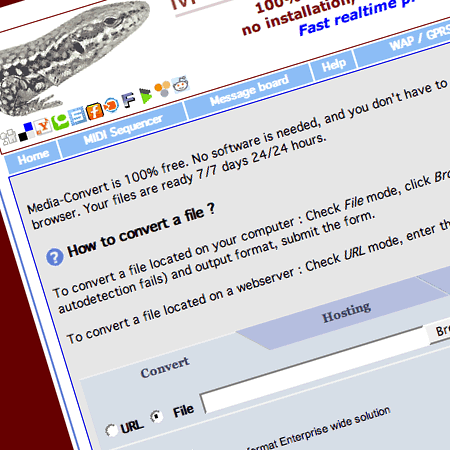
Online video conversion tool that doesn’t require you to install anything. I have also been recommended zamzar.com, however due to the plethora of pop-ups and the fact you have to give an e-mail address means that I for one would not use it.

YouTube

The infamous video website that allows users to upload and share their video.

TeacherTube

Like YouTube but for teachers.

Online Video Conversion Tools

I have mentioned video media conversion tools before, but most of them have been applications. These are fine for example if you have the right computer (you need a Mac for VisualHub) or you have administrative rights to install the software on your Windows computer (which in institutions is generally not the case).

So if you can’t install a conversion tool on your computer, how do you convert video files, well I have been looking at online video conversion tools for a while now.

The one I have used and found the results work well on mobile devices is Media-Convert.

Media Convert

It’s quite simple, you upload a media file from your computer, and an online conversion converts into the file format of your choice. It can handle a large number of file types including text and audio as well as video, and has a range of possible output file types.

It can be used to create PDF files which is handy.

The user interface could be better, it is covered in Google ads, but it is free and they need to make money somehow.

I was impressed with the quality, I took a large Quicktime movie and converted it into an MP4 file that could be used on my Nokia N73, and the conversion was done very well.

I was recently told about another online media conversion tool, Zamzar, however the site is populated with pop-ups and you also need to enter an e-mail address which smacks to me that my e-mail might be harvested and passed onto third parties.

BBC Review Four Wifi Media Players

The BBC has published a review of four of the top wifi capable media players currently on the market.

The Sony PSP, the Nokia N800, the Archos 605wifi and (of course) the Apple iPod touch.

Gadget lovers are spoilt for choice when it comes to portable media players, with an increasing number offering web access through wi-fi connections. We take a look at four different players – Sony’s PSP Slim, Archos 605wifi, Nokia’s N800 and the Apple iPod touch – and assess their strengths and weaknesses in different categories.

Their winner, well it’s only fair that you check out the article, but it doesn’t surprise me.

Nice selection of animated “how to” guides

Russell Stannard has posted a range of online animated guides that demonstrate various ways in which you can incorporate learning technologies into teaching.

These videos were created for teachers to help them to incorporate technology into their teaching. My own background is in teaching English, so some of the sites are specific to ELT and are grouped separately. The rest are for all teachers and there is also a section for those interested in more difficult multimedia products like Flash and Director.

The cover how to use iTunes, PowerPoint tips, creating blogs and many other things.

He has used Camtasia to produce the video guides. Personally I am a fan of Captivate which does a similar job, for those looking for a free tool, Wink is certainly one option which does work quite well.

Well worth a look.

Showing Digital Video Recordings

Here in the UK in order to show television recordings to your students you may need a licence, this is run by the Educational Recording Agency (ERA).

One thing I have found that a lot of people don’t realise is that the ERA licence only covers specific broadcasts from the following broadcasters.

BBC television and radio
ITV Network services (including ITV2 and ITV3)
Channel Four and E4
Five television
S4C

It does not include for example films or adverts or commercial radio.

However this is not an issue (except for labelling purposes) to quote the ERA:

However, if you record these broadcasts for non-commercial educational purposes your recordings will not infringe copyright, unless a certified Section 35 licence applies. This is because Section 35 (1) states that where works are not covered by a certified scheme, then educational establishments may reproduce and communicate them electronically on-site without infringing copyright. You will need to adequately acknowledge, i.e. label, any broadcast recordings you make under Section 35 (1).

So you can record adverts for showing for instructional purposes, or as one college I am aware of recorded The Terminator for a media lesson, without needing a licence.

Note to those who wish to hold digital recordings of tv shows, the ERA licence for ERA licenced recordings only covers the on-site computers and therefore you can not stream to students at home for example.

Digital recordings stored on-site, e.g. on an establishment’s central server, may only be accessed from on-site terminals. A suitable security or password protection system needs to be in place to ensure recorded material is not accessed by students at home or anywhere off-site, as this is not permitted under the ERA Scheme or any part of Section 35.

Usual disclaimer applies, all material in this posting is for informational purposes only and should not be construed as legal advice. In all copyright matters, consult a legal expert or lawyer.

My Top Ten Applications for e-Learning

My top ten applications which I use to create and support the use of e-learning are…

Keynote – a superb presentation package, not matter how many times I start creating a presentation in PowerPoint, I virtually always end up in Keynote. The latest version (iWork ’08) is a real improvement on the previous version and I will admit I do like the audience going “ooh” when I use the cube transition.

Toast – not only a superb disk burning piece of software, but extremely capable of converting a range of video file formats and doing it well. Another useful video conversion tool I have started using is VisualHub.

EyeTV – though Windows Media Centre (and now Vista) has a much better interface, the versatility, the editing and exporting functionality make EyeTV the only real choice when it comes to recording and editing television. Combined with Toast and VisualHub you suddenly can record, edit and watch that video wherever, whenever and on whatever you want.

Dreamweaver – steep learning curve, but if you need to get your hands dirty with HTML and websites then this package is perfect. Though I do like Dreamweaver, I know with web tools such as WordPress and Drupal tools such as Dreamweaver are becoming less essential than they were in the past.

Fireworks – For manipulating images for the web then I go with Fireworks every time. Can also be used to create simple animated gifs. I do use PhotoShop, but for web image editing I always start Fireworks first.

Firefox (with Safari a close second and Flock in third place) – I can’t work with non-tabbed browsers, so on the PC it’s Firefox all the time, on the Mac I mainly use Safari. Safari with it’s .mac integration allows me to share my bookmarks over multiple computers and over the web. Now Safari (in beta) is available for Window and I like how Safari for Windows looks almost exactly like Safari for the Mac. Flock is for me relatively new and I do like the integration with online tools such as Flickr, del.icio.us and WordPress.

Continue reading My Top Ten Applications for e-Learning

Sixty Years of “Charley says” and all that – now online

If you are of a certain age you may recall various public information films starring such people as Kevin Keegan, Jimmy Saville, the Green Cross Code Man, Charley and the Grim Reaper!

Green Cross Code Man

The National Archives has now put sixty years of public information films online.

For the first time on The National Archives’ website you can view complete public information films from 1945 -2006. Joining with the Central Office of Information (COI) to celebrate their 60th Anniversary, we have featured a selection some of the most memorable and influential COI public information films that cover some fasinating events from Britain’s post-war history.

Continue reading Sixty Years of “Charley says” and all that – now online

iPod touch

In a session at ALT-C I mentioned (and blogged)…

…about the rumours of new OS X based iPods, these may be wireless and may have browser capability. We should know by about 7pm tonight.

Well by 7pm we did know. I checked out the details via my phone at the conference dinner.

Apple did announce a new iPod with a touch interface (aka the iPhone) which will be available worldwide and will be wireless, have a browser and run a version of OS X.

Whether I get one, different story, £200 is a lot of money for a touch interface. I already have devices which can play music and video and portable wifi capability as well.

Having said that , it would be nice to have one, then again do I wait until the iPhone is available in the UK and get the phone element as well?

Decisions, decisions.

Whatever I decide one of the key things to remember is that our learners will by buying this iPod, they will be buying other iPods, other mp3 players, new phones, etc…. and we need to think about how they can utilise those devices to support their learning.