I really enjoyed this talk by Jimmy Wales at LWF11.
Jimmy Wales is the US Internet entrepreneur and wiki pioneer best known as the founder of Wikipedia. “Imagine a world in which every single person on the planet is given free access to the sum of all human knowledge” Jimmy asks us in this talk and discusses how Wikipedia has grown, the impact it has made and the people who contribute to its creation. Jimmy discusses future directions and plans for Wikipedia and Wikia, Inc. Presented January 11th 2011.
I mentioned this recently in the final ALT-C Keynote.
This is a regular feature of the blog looking at various Apps available. Some of the apps will be useful for those involved in learning technologies, others will be useful in improving the way in which you work, whilst a few will be just plain fun! Some will be free, others will cost a little and one or two will be what some will think is quite expensive.
A ground-breaking look into the human body that offers highly accurate, visual and accessible information. The wonders of human anatomy are explored and explained in a way that offers hours of learning, fun and entertainment.
Designed for everyone with an interest in the subject, the Human Body app is a must-have reference. With enough detail to satisfy the demanding student, the app also offers rich illustrations and features for the casual browser. This is the perfect gift for yourself or someone who loves to learn.
£9.99
I was recently asked on Twitter how the iPad could be used for science. As well as obvious ideas about using it for data collection and web access, one idea I put forward was about using the many science based apps that are now available.
Eureka is an iPad magazine on the science of sport and has a really interesting and interactive interface for accessing different aspects of sports science complete with images, video and audio.
Merck PSE covers the perodic table, though if you want an even better experience check out Elements.
Pocket Heart is a really nice app that looks at the anatomy of the heart which has won respect from many science teachers and medical practitioners.
What DK The Human Body does is cover (as you can guess from the name) the whole human body.
According to many medical practitioners and science teachers I have spoken to, this is a excellent app for any learner studying human anatomy.
As well as been an engaging interactive app, it also has the necessary detail required by relevant courses, even for medical students according to one review!
So if you are studying (or teaching) human anatomy, take a look at this app.
Blogs about ALT-C, a feed of blogs about ALT-C, this will expand as more people reflect on the conference.
I enjoyed ALT-C again this year. As well as going to keynotes and sessions I also spent a bit of time streaming live video with my experiment ALT Live Beta and here are some thoughts from Steve Wheeler.
Met a fair few people from FE, congrats to Claire Donlan from Middlesborough College who is now vice-chair of ALT.
Well done to Ellen Lessner who blogged about the event on behalf of LSIS TEN.
Was nice to meet Kieran from Sheffield College, Jo from Blackpool & Flyde College and Mel from Milton Keynes College. Good to see many old friends too, like Phil from Aberdeen College. Also met loads of people from HE, local and far away, good to meet Thom Cochrane from Auckland who I have known for many years, who incidentally won the best proceedings paper award.
ALT-C has so much to offer the FE sector.
Now I know (as you do, as do the others from FE who attended) that the first week in September can be busy for FE.
What I would like you to do, is look back over the week and ask yourself, how busy were you doing ILT stuff, and how much stuff were you doing that could have been done by others?
Could you have been not in college for one day perhaps?
Now is the time to decide if you can get out of college next year for ALT-C 2012. Talk to your manager now about what you actually did and how you wouldn’t really be missed if you attended probably the only and best learning technology conference currently happening.
I know how challenging it can be to get out of college for the four days of ALT-C, I know because I do it. Luckily I have a great team behind me. I did check my e-mail when I was away and to be honest there wasn’t much there as people were busy back at the college!.
If your place gets manic and people get all panicky, I would ask why are we always surprised by the fact that students arrive in September and as a result things get busy.
It’s not as though it happens every year is it…. oh!
How do you use Moodle? Document management and broadcast-oriented communication tools . . .comprise 95% of all [LMS] user actions.
Charles Severance and Stephanie D.
I am sure in many educational institutions that most people using the VLE probably only use it in the main as a file repository and occasionally use it to “broadcast” stuff.
Tools such as Moodle have a range of functions that I know many of our staff are using, but of course not everyone knows everything. I like this presentation from the Columbian MoodleMoot 2011 by Michelle Moore, in which she explains some of the other functions of Moodle that can be used to enhance and enrich course delivery.
This has been an experiment I have been thinking about doing for a while now, and I emphasise this is an experiment, hence the beta moniker. I have no idea if this will work as planned or is something that people will engage with.
Amplification of conferences is something that has been happening for a while and I have discussed at length in a previous blog post.
In that post I talked about my social media experience of the ALT Conferences I had attended since 2003. I said that ALT-C 2007 was a bit of a sea change and the first of the ALT Conferences that social media really started to amplify the conference beyond the walls of the physical conference. Amplification can take many forms and Brian’s post about providing an Amplified Event Service is well worth reading.
There are many people who can not make ALT-C for a variety of reasons, sometimes no funding is available, many people interested in the conference don’t live in the UK so making it more difficult to get funding and from my own sector, the first week in September for FE Colleges is the busiest one of the year, so very few FE people can attend the conference in person. For these people amplification of a conference can allow them to “attend” and engage. For some the end result will be that they enjoy the experience and attend the conference the following year.
In the past at ALT-C, though we have had the live streams of the keynotes and invited speakers, most amplification has been textual through Twitter and blogs. A few people used Flickr to share photographs and back in 2009 we did live stream “The VLE is Dead” to a remote audience, however using wireless and no remote microphone meant that the final half of the session, the discussion was either difficult to hear and at one point the stream failed!
However it did make me think about doing something more at ALT-C than twittering and writing blog posts. The inspiration was the experiments on live streaming I had done via my mobile phone at the JISC Conference and a MoLeNET Conference and also the live presentations I had done as part of the MoLeNET programme. Experiences of the JISC Online Conferences had also demonstrated the value of video and audio for amplification in addition to textual stuff.
One of the things though I find with existing ideas on amplification is that they focus on the core content of the conference and miss all the stuff that happens outside the sessions. The chat and discussions people have over coffee. I have been at events that have had a fantastic Twitter stream that gets suddenly cut off as everyone has coffee or lunch. The delegates at the event are continuing to discuss and converse, however it all goes silent for the remote audience!
So at ALT-C 2011 I am trying a new idea in order to capture, create and engage in that “silent” online time. Probably the best way to describe what ALT Live Beta is, is if you have ever watched Glastonbury or T4 on the Beach on the television, as well as the “front stage” stuff, they also have a room back stage where they chat, discuss and interview the people who have just been on stage. ALT Live Beta is a live internet video stream of the “back stage” of ALT-C 2011.
Me and Darren Moon (from LSE) will be hosting, broadcasting and doing all the technical stuff. We will be based in the exhibition area at the conference, we have a little booth to act as a studio. We will be streaming live from 8:30 – 6:00 on Tuesday and Wednesday and 8:30 to 1:00 on Thursday. Though you might want to tune in on Monday afternoon as we set up the equipment and do some final testing.
If you have an Android phone then there is a Justin.TV and one for iPad and iPhone. You may need to search for “jamesclay” or go to www.justin.tv/jamesclay/ to watch the stream on your mobile device.
With interviews, chat, commentary, guests, discussion and more, ALT Live Beta will be bringing you the best of ALT-C 2011 and lots of back stage conversations live over the internet.
Now we also want to bring in remote participants and I will be using Skype to do this, so if you are interested in participating remotely please e-mail me with your Skype name. You will need to sign a release form which I will send to you.
If you are attending the conference we do need delegates to come and be part of the broadcast. We want to give you an opportunity to talk about what you are getting from the conference, your views on the keynotes, the invited speakers, the papers, the workshops and all the other sessions. Come and discuss your session with remote participants or continue the discussion that didn’t happen because you ran out of time. Without the contributions from delegates, presenters and speakers this may not work as we want it to.
Recorded highlights from ALT Live Beta will be made available later on the ALT YouTube Channel.
This is a regular feature of the blog looking at various Apps available. Some of the apps will be useful for those involved in learning technologies, others will be useful in improving the way in which you work, whilst a few will be just plain fun! Some will be free, others will cost a little and one or two will be what some will think is quite expensive.
Real time cartoon and painting effects painted on your camera video feed!! See the world through a new,original,stylish and captivating lens, have a wonder in your own home and discover how cool is now your world in cartoon!
This is the ultimate collection of cartoon/sketch/comic book/halfone/noir/neon and many other effects painted directly in your camera, no more boring post-effects, it’s all real time, you simply won’t stop wandering, wherever you are, having a look at things and cartoon-ize them!
We’ve packed this app with many stylish cartoon-style filters, so you would never get bored!
Import your existing pictures and paper-ize them, they will look absolutely stunning, we just couldn’t stop looking at them, take a another one, paper-ize it, and then looking at it, pretty much forever…
£0.69
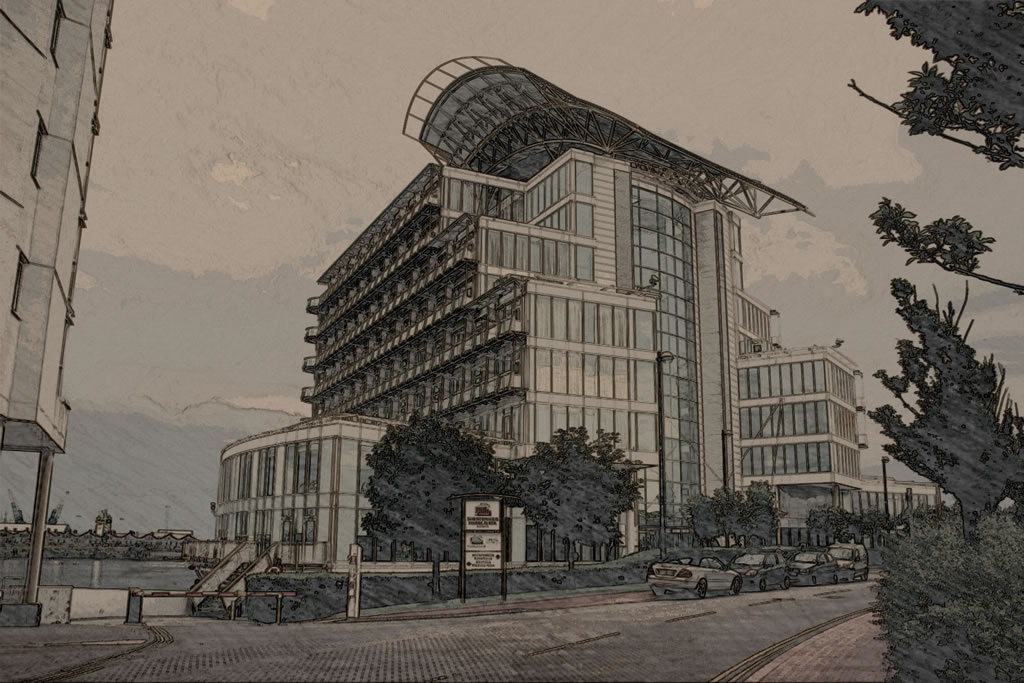
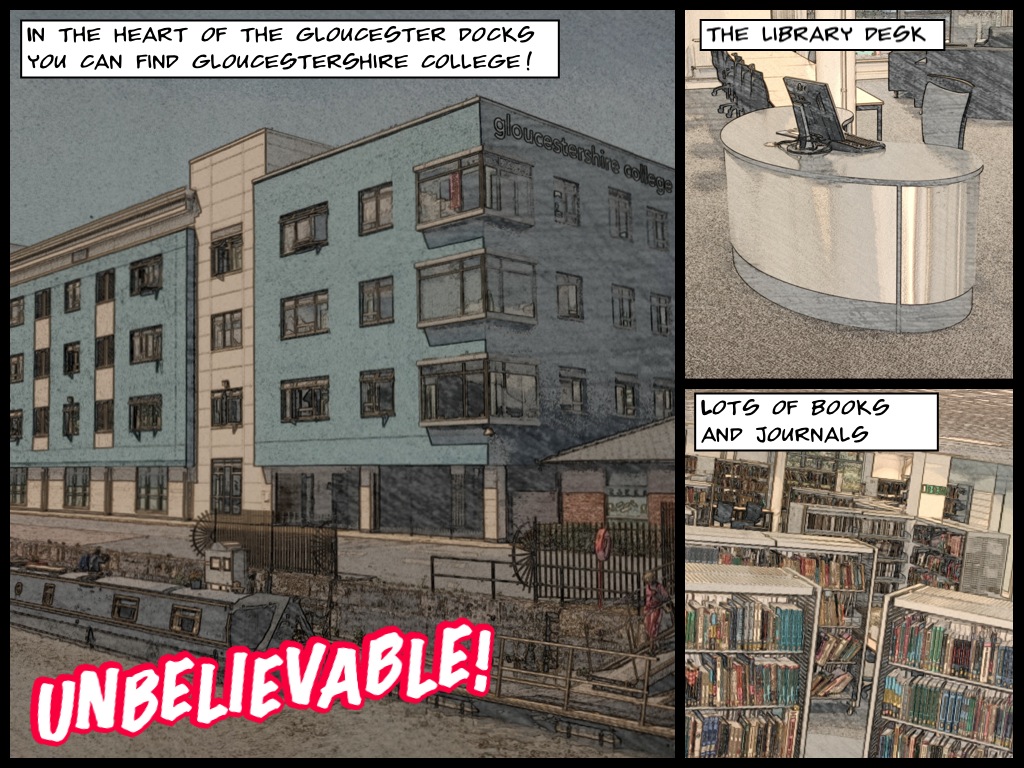
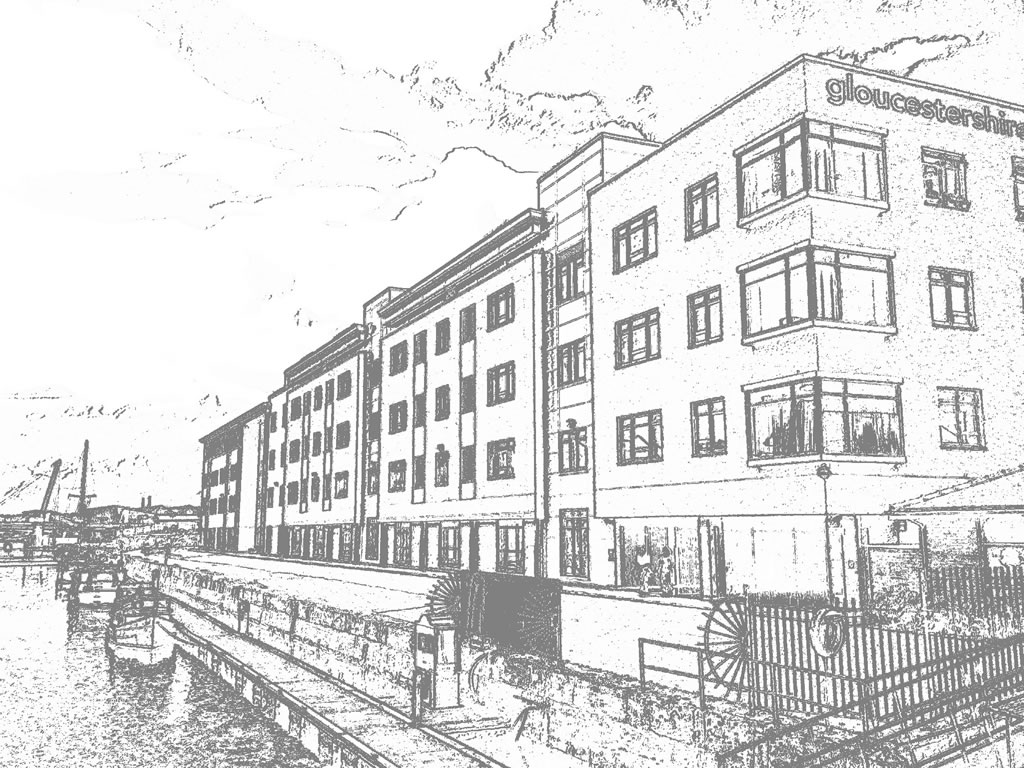
This really nice image manipulation app creates cartoon or sketch like images from either your photographs, or applies the filter in real time so you can see what your image will look like through the live image from the camera.
You can through the interface convert live camera footage into a sketch, cartoon or pencil drawing image in real time, use the camera button to capture the image through the live filter.
Of course been able to apply the filter to photographs in your photo library is probably more useful in the creation of learning resources. However one downside of this is that browsing for images is restricted to only your whole photo library and you can’t look into individual albums. So if you have a lot of photographs on your iPhone then this could be difficult to find existing images.
Once you have created these images they are saved to the photo library, so you can then use them for handouts, presentations, on the VLE; so you enhance and enrich learning resources. This is also an ideal tool to use with comic creation apps such as Comic Life or ComicBook!
Some images work better than others, so you may not always get the image that you hope for.
Paper Camera has an advantage that it is an universal app so works on the iPad and the iPod touch as well as the iPhone.
Paper Camera costs just 69 pence and is well worth the money for the clever images you can create using it. Get Paper Camera in the App Store.
Having posted Steve’s presentation on assessment earlier, I was reminded that I had delivered some training on assessment and diverse forms of assessment a few months back.
This was the presentation I gave at the training.
The key message I wanted to get across to the participants was that just because they had assessed the way they had always done, this didn’t mean that was the only way they could assess learners. Often we assess the way that we do, we do it because we have always done it that way. There are now new tools and technologies that allow us to enhance and enrich assessment. and make it more engaging and effective for learners.
Sometimes we need to think differently, especially if the current methods of assessment are not doing what we need them to do.
An interesting presentation from a keynote by that Steve Wheeler, Assessment in the Digital Age:Fair Measures?
Assessment, which in FE is heavily dictated to by the exam boards is always challenging to change to make “fit for purpose” and I do wonder if we assess because we need to assess rather than actually use it for something useful?
This is a regular feature of the blog looking at various Apps available. Some of the apps will be useful for those involved in learning technologies, others will be useful in improving the way in which you work, whilst a few will be just plain fun! Some will be free, others will cost a little and one or two will be what some will think is quite expensive.
ComicBook! is the FULL featured comic book creation app!
In only seconds, turn yourself and your friends into comic heroes or villains. Be the star in your own comic book adventures.
Realistic comic styling with a wide selection of: image filters, comic fonts, customizable captions, a library of classic comic graphics and dozens of multi-panel page layouts.
£1.49
If you downloaded Halftone recently following my review of it a few weeks ago and are now looking to do something more than just the single image in Halftone then you might want to have a look at one of the more dedicated comic creation app.
If you have an iPhone or iPod touch then I would suggest you have a look at ComicBook!
It allows you to quickly create a comic strip using existing photographs or you can take some with your built in camera. You can, after choosing a layout add those images, either from the library or take them with the camera.
The International Association for Mobile Learning (IAMLearn, www.iamlearn.org), in collaboration with Epic (www.epic.co.uk), is proud to announce the Mobile Learning Challenge.
The Mobile Learning Challenge is searching for innovative and visionary solutions for learning using mobile technologies.
Practitioners, students, and young researchers are particularly encouraged to contribute their inspiring and visionary concepts. Specific technical skills are not required for participating!
The winner of the Challenge will receive £1000. The winning solution will be presented to the mLearn 2011 conference audience either by the winner (if present at the conference) or by the President of IAmLearn.
This prize is co-sponsored by IAmLearn and Epic.
The second prize
The runner-up will receive a prize of 5 years’ free membership of IAmLearn.
Deadline for Submissions is Wednesday, 14 September 2011 24:00 GMT.
news and views on e-learning, TEL and learning stuff in general…