Moodle Training in Zambia

Posted by Peter Kilcoyne

ILT Director

Worcester College of Technology

Thanks again to James for asking me to post something about the work I’ve been  doing in Africa in partnership with Computer Aid.

I’ve recently returned from a weeks visit to Lusaka where I worked with staff from Universities from Zimbabwe, Zambia, Liberia and Nigeria as well as organisations supporting the use of ICT in schools in Zambia.

The training was set up and organised by Computer Aid as part of their support to organisations to which they supply refurbished  computers that have been donated by schools, colleges, universities and businesses in the UK.

The training covered planning an organisational implementation strategy for introducing elearning and Moodle and a full train the trainers package to enable delegates to return to their own organisations and deliver Moodle training. All delegates were given zipped up Moodle training courses and a number of sample courses from different curriculum areas at Worcester College of Technology.

Some Pictures from the Training Session

Most of the delegates were new to using a VLE and there was a great deal of excitement about the potential that Moodle would have to enhance learning in their institutions and for providing new learning opportunities for students across their countries through online earning.

I hope this enthusiasm is reflected in these two short videos of Precious from the University of Zimbabwe and Fatoye from the National Teachers Institute in Nigeria


I’d also like to share a clip from the end of the training where Gladys the Kenyan representative from Computer Aid led a traditional African thank you.

e-learning has huge potential benefits in Africa where access to University is much more limited than in the UK. However  institutions wishing to implement it have serious barriers to overcome. These include compared with the UK lower levels of staff and students ICT skills and confidence, less access to PCs and slower connectivity.

I’d like to finish this posting by asking readers to look at what happens to your organisations ICT equipment when it’s no longer needed and to consider donating it to Computer Aid. www.computeraid.org

If you have any questions about this post please contact me at

pkilcoyne@wortech.ac.uk

WIRED Magazine – iPad App of the Week

WIRED Magazine – iPad App of the Week

This is a regular feature of the blog looking at the various iPhone Apps available. This series will also now cover Apps for the iPad. Some of the apps will be useful for those involved in learning technologies, others will be useful in improving the way in which you work, whilst a few will be just plain fun! Some will be free, others will cost a little and one or two will be what some will think is quite expensive. Though called iPhone App of the Week, most of these apps will work on the iPod touch or the iPad, some will be iPad only apps.

This week’s App is WIRED Magazine.

Download WIRED and be the first to experience this groundbreaking magazine with exclusive iPad content. Go behind the scenes of Pixar’s Toy Story 3. Spin our interactive Mars map to see the human impact on the Red Planet. Hang out in the recording studio with Nine Inch Nails frontman Trent Reznor. See the greatest special effects in modern film—all in one reel. It’s the WIRED vision of how technology is changing the world—and it’s only on the iPad.

WIRED: It’s a look into the future of science, culture, business, and entertainment. Get connected. Get WIRED.

£2.99

Certainly this App for the iPad (and this is an iPad only App) has been making the news.

So what did I think?

Back in January I posted a YouTube video showing how a magazine could work on a tablet type device. This was before Apple announced the iPad.

Here we are in June and I have now managed to get my hands on something similar, WIRED Magazine for the iPad.

Now I do buy WIRED magazine now and again, usually if I am going to fly or take a Cross Country Voyager train, somewhere with no connectivity or not allowed to or easy to use a laptop.

I enjoy reading the articles and much of the tech is not computer tech but very specialist and geeky tech.

I was slightly hesitant about spending £2.99 on what is basically an online magazine, I like many others, am very accustomed to free online content. I did however want to try out this App (magazine) as it was going to be indicative of what was possible for the iPad in terms of providing content.

I did write a week or so back about problems people had had with academic text books on the Kindle.

This is a lesson that educational publishers need to recognise when publishing content to platforms like the Kindle and the iPad. Though novels are linear and as a result eBook formats can “work” like a printed book, educational books are used differently and as a result eBook versions need to work differently. Students need to be able to move around quickly, annotate and bookmark.

I have also talked about how e-Books could make a big difference to learning.

e-Books are not about replacing books, in the same way that online news sites don’t totally replace physical newspapers, or YouTube replaces TV.

Likewise e-Book Readers don’t replace computers; what both e-Books and e-Book Readers do is allow reading to happen at a time and place to suit the reader.

So I think I had quite high expectations about WIRED Magazine and was looking forward to reading it on the iPad.

First impressions were quite favourable with the pages looking wonderful on the iPad screen.

I did like the use of animated and interactive graphics in certain articles. These really made it easy to see what the diagram was trying to demonstrate.

I also liked the use of video, this did enhance many of the articles. I liked the one used for the ILM Turns 35 article which showed clips from many of the films ILM has created effects for.

With both of these I am sure this is because they were “new” and “shiny” I did miss a few of them, well I wasn’t looking for them. The same can be said for some of the images that could be swapped about.

It was useful that the App remembered where you had go to and you could (using a movie type scrubber) move quickly between different areas of the magazine.

The text was easy to read and many of the articles were quite interesting.

There were though issues with some aspects.

I didn’t like the navigation, sometimes you had to swipe left and right to move between pages and sometimes up and down to access more of an article. It wasn’t always clear where you would be going next. Having said that, the App was quite good at moving between portait and landscape mode.
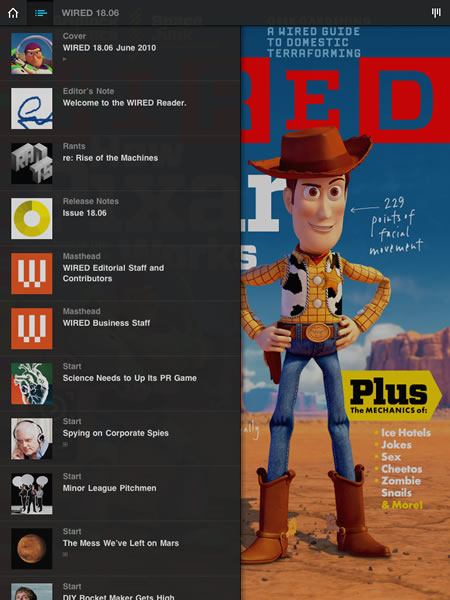
My main issue was the quantity of advertising. Yes I know it’s a magazine, but two adverts between each page of content! I paid £2.99 for this App and it’s also advertising supported. A very few adverts had interactivity, others were just typical magazine adverts. Note that they were all US based so most were not relevant.

Upon reflection I was quite impressed and enjoyed the reading experience. In many ways it was a similar experience to reading WIRED magazine, but the enhancements did add to the experience.

This is still very much old media trying to use new tools to sell a traditional old media type experience.

Was it worth £2.99? This I am less sure about. Though this issue of WIRED sold well, it will be interesting to see if the next issue sells just as well.

Update: link changed to reflect current offering in App Store.

WWDC 2010 Keynote

Today is Steve Jobs’ Keynote at WWDC. It will be on around 6pm here in the UK. There is no live feed and I expect to follow the key announcements via Twitter or Engadget.

Traditionally we get to hear about new products and new software.

As might be expected the web is rife with rumours about what we will hear about. I’ll let you Google them to find what they are.

I am expecting to see a new iPhone, and though I am pleased with my iPhone 3GS will be thinking about upgrading to the new one if it does more than the 3GS does. Key new features for me are not so much the multi-tasking that we will see in iPhone OS 4.0 as that will work on the 3GS, but new hardware features. I would like to see a new camera with a better lense. The 3G camera is rubbish compared to the 3GS, but many other phones have much better cameras and I do use the camera on my iPhone a lot. Prior to retirement I used the camera on the Nokia N95 a lot too.

I doubt we will see the portable wifi hotspot that Android 2.2 brought to the Nexus One which is a pity as that is such a useful feature of that phone. Now using it more than ever.

Will be interested to see if there are any details on a new version of OS X and what that will bring to my Mac.

Not long now…

100 ways to use a VLE – #74 Embedding audio

Most people I know are aware that you can embed video into webpages from sites such as MoLeTV or YouTube.

It should be noted that many sites that host audio files, also allow these to be embedded into webpages. Of course that means you can usually embed them into the VLE.

A service such as Audioboo allow you to embed audio into a web page so will work on the VLE.

Having recorded your “boo” you can copy the embed code (or copy the embed code of another “boo” that you have found).

This can then be “pasted” into the VLE into a discussion forum, into a webpage or as a label into a topic.

Listen!

The advantage to the learner is that they can just click play without having to worry about clicking a link, opening a new window, click another link to play the audio.

So you’ve embedded the audio, what next?

It’s not just about the audio, you can’t just place the audio on the VLE and expect it to do everything. As with using audio in the classroom, you need to consider the audio in the context of the learning activity.

You may example ask your learners to listen to the audio and comment on the recording in a VLE discussion forum. Another example would be to use an audio recording to reinforce a resource on the VLE.

NewsRack – iPhone App of the Week

NewsRack – iPhone App of the Week

This is a regular feature of the blog looking at the various iPhone Apps available. With the release of the iPad in the UK, this series will also now cover Apps for the iPad. Some of the apps will be useful for those involved in learning technologies, others will be useful in improving the way in which you work, whilst a few will be just plain fun! Some will be free, others will cost a little and one or two will be what some will think is quite expensive. Though called iPhone App of the Week, most of these apps will work on the iPod touch or the iPad, some will be iPad only apps.

This week’s App is NewsRack.

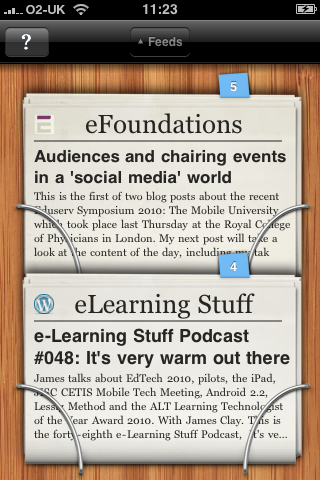
NewsRack is a full-featured RSS reader for iPhone and iPad with a unique interface. Skim over the latest headlines on a beautiful rack of newspapers or use the powerful classic interface to read and organize feeds.

£2.99

There is lots of stuff out there on the web, lots of news, blogs and other stuff. Stuff that I may find useful and stuff that I may want to pass onto others. I often get asked how I know about stuff, well I read a lot of stuff is basically the answer.

A key information skill is the ability to sort the wheat from the chaff in the sheer amount of information which is thrown at you on a daily basis. I often see my role within the use of ILT as a gatekeeper to ensure that important and relevant stuff gets to key people in the college without overloading them with either lots of stuff or what can happen loads of irrelevant and unuseful stuff.

Now I only have limited time, so I need to use tools to allow me to quickly and effortlessly sift through the information, picking out the gems and useful bits. I need to store some for later, others I will post out straight away.

A key way in which I do this is through the use of RSS feeds from the various blogs and news sites. These automatically update throughout the day so that I don’t need to go back to sites and check if there is anything new, the use of RSS feeds allows the news and articles to be pushed to me.

Even though I use RSS I don’t read everything, I just don’t have the time… when I do find a spare minute I will flick through the feeds to see what is interesting and new. I star things I think may be useful, interesting or to blog about later. I also will post URLs to Twitter or the VLE.

On the desktop I use Google Reader, but it’s also nice to be able to view the feeds on a mobile device. In the main as I am more likely to have time with my iPhone to read feeds than with the desktop. I have used a few apps in the past and some of these have relied on services that have come and gone. I use to use NewsGator and NetNewsWire

My current setup consists on Google Reader on the desktop and I now use NewsRack on the iPhone which was recommended to me by someone.

There is also an iPad version available too.

Now NewsRack is not a free App and there are ways of reading RSS feeds for free on the iPhone (through Safari bookmarks for example). What I like about NewsRack is that it syncs with Google Reader, so that any items I have read on the iPhone will be marked as read on the desktop and likewise articles I have starred on my iPhone will be available for reading again, linking, blogging, etc…

As a result of using a service like NewsRack I can quickly browse news and blog feeds and am able to pick out the relevant and useful news and articles I need to enhance and improve the way in which I work.

Yes the newspaper thing is a bit of a gimmick, but that wasn’t the reason I purchased the App. I like how it works and I like how it improves the way I work.

More iPad Thoughts

I am continuing my iPad journey.

After writing my initial thoughts from Friday I did show the iPad to a  few people at work, staff and learners, and all were impressed with the device.

All managed to pick it up and use it, some because they had an iPhone and some because it just worked!

I had a chance to pop into the Apple Stores in Cribbs and Cabot Circus, both stores had a lot of iPads, lots of interest and seemed to be selling fair few as well. Both stores had sold out of the camera connector kit, but other accessories were available. PCWorld are also selling the iPad, but having seen it in there, it just didn’t seem right… but they were also selling well.

I had a chance to try out the virtual keyboard writing some stuff last night and it wasn’t that bad. It takes a little getting use to, but though is much better than the “little” keyboard on the iPhone is as you would expect no where near as good as a “real” keyboard.

I have downloaded some iPad Apps to see what the capability of the device is. Some of these work well, others I feel could work better.

The more I use it the more I realise how this can replace a laptop in many situations, and as a conference device it would be perfect for taking notes, checking URLs, sharing stuff and then some. For using around college again it could be really useful for checking e-mail, using the VLE, finding information, sharing stuff.

Likewise for learners this could work really well in the classroom as a tool to support their learning and a lot less intrusive then a desktop PC or even a laptop.

I think there is a future for the iPad. In a future blog post I will look at some of the Apps.

100 ways to use a VLE – #25 Scheme of Work

Sometimes it is the little things that make a difference to the learner. One thing can often be the difference between a learner completing a programme of study and one deciding to drop out.

A key “little” thing is keeping a learner informed and up do date about where they are on their course and where they are going.

Research by the LSDA back in the 1990s showed that if learners were well informed about their course that they were more likely to stay on that course, in other words improve retention.

So what’s the easiest way to do that? Generally as well as other things a scheme of work for the course gives a learner a clearer idea of not only where they are going in their course but also where they have been.

Most practitioners I know give their learners a scheme of work at the beginning of the year. However learners will lose it or leave it at home. Likewise there is a good chance it will change, if it snows for example.

By placing the scheme of work on the VLE the learner can access it at any place and any time. If it is on the VLE then it is equally important for the practitioner to not just ignore it. It can be updated as and when needed. If you use a web page on the VLE you can add live links to lesson resources and online content making it a more useful document for learners looking for information.

A scheme of work is a valuable resource for learners. A dynamic updating interactive version on the VLE is a really valuable resource for learning.

news and views on e-learning, TEL and learning stuff in general…