100 ways to use a VLE – #92 Making choices

Sometimes you need learners to make a choice. A choice about which module they want to do. A choice about which area they want to study for a project. A choice about where they want to go on a field trip.

We often ask learners to make a choice. Traditionally we have probably used paper to make and collate choices.

The VLE can be used to both offer the learners a choice, but also to record their choices.

Quick and easy you can create a series of choices.

Once learners have made their choices you have quick and easy access to the results.

I have an inkling…

In many recent presentations I have given on e-books I have said that the way publishers market their publications needs to change. Just “digitising” traditional books as e-books is not necessarily the way forward for e-books.

If we look at other traditional media and see how they have evolved in new digital forms it may give us an idea about the future of books.

Watching films use to mean going to the cinema, sitting down through adverts and trailer before the main presentation, oh and popcorn. Through television, VHS rental, purchasing video tapes, DVD, Blu-Ray and now iTunes downloads, the way in which we consume films has changed. In many ways television has changed even more fundamentally. Digital TV means for many, many more channels and choice. A lot of TV series are now viewed by DVD box set over watching it when originally broadcast. Services such as YouTube, iTunes and BBC iPlayer have allowed us very different ways in which to consume television. Even with iTunes it is now possible to buy an individual episode of a TV series.

When we first started watching postage stamped sized video on our Windows 95 PCs, I expect very few of us had any inkling about how we would be watching video via our computer fifteen years later. It was very easy to consume video through physical media such as DVD or Blu-Ray, but it is now even easier to consume video over the web, either through iTunes or services like BBC iPlayer.

We use to buy music either as albums or singles, now with the iTunes Store or Amazon we can buy individual tracks from albums.

I am sure similar changes will happen with books, with e-books just been the start of this process.

One thing I have said is that publishers need to move away from the traditional approach of selling the whole text book as an e-book and start thinking about selling individual chapters to users, in the same way that we can buy individual episodes of a TV series.

I have said we should move away from digitised versions of print books and take advanatage of the digital medium with interactive content and media.

So I was pleased to see that at least one publisher, Inkling, is going to go down this road. As Gigaom reports:

The company believes the iPad — for now, at least — is the future of the textbook. Inkling’s software turns textbooks into interactive content, with video, hyperlinks between text and images, notes that can be shared between students and teachers, and even 3-D molecules that can be viewed from any angle.

In addition you can buy individual chapters or the whole book.

The company’s interactive textbooks can be downloaded by the chapter for an introductory price of $2.99 each, or the entire book can be downloaded and installed at a price of $69.99

This is just the start for digital textbooks.

Do you like books or do you like reading?

I am running another symposium at ALT-C, this year it is on ebooks.

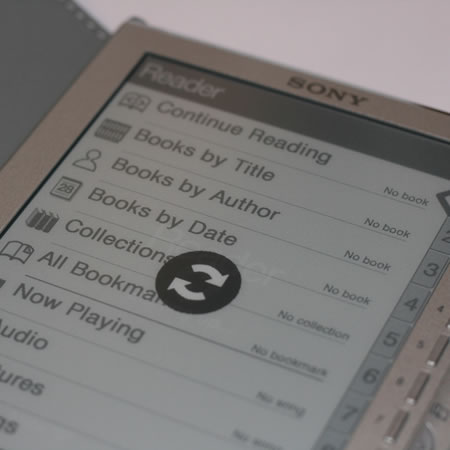
eBooks and eBook Readers bring new challenges and new opportunities for learning technologists. Sony has the eReader, Amazon the Kindle and now Apple has the iPad. Publishers are now offering more titles as eBooks.

There is a huge growth and interest in this new medium. Some learners prefer physical books and the feel of paper, but do eBooks have the potential to offer more to the reader? Are eBooks a new way for learners to access information and learning? Are they just a digital version of print, ignoring the affordances of new technologies?

This symposium will explore the potential of eBooks, the role of eBook Readers for learning, and the ways in which learning technologists can utilise eBooks to enhance and enrich the learning experience.

The panel consists of: educators who have used eBooks with learners; researchers who have researched the use of eBooks in education by learners; publishers who have designed and developed eBooks; and learning technologists.

Each member of the panel brings their experience of embedding the use of eBooks with learners. These experiences have been through using eBooks in the classroom and in the library with learners. Researching user behaviour in the use of eBooks and designing eBooks for learners.

The session will commence with an overview and introduction of eBooks and eBook technologies, through mobile devices such as the iPad and using the browser.

The members of the panel will each deliver a presentation on their view of the future of eBooks. They will pose questions to the audience to stimulate debate and discussions. Panellists with the audience will debate the strengths and weaknesses of eBooks and the various eBook Readers available. They will discuss whether eBooks offer new pedagogies or reinforce existing ones.

By the end of the debate participants will have had an opportunity to discuss the advantages and challenges that eBooks bring to education and the role they could play in the enhancement and enrichment of learning.

The symposium takes place between 17:10 – 18:10 on Tuesday, 7 September in Room 1.

Osfoora HD, for Twitter – iPad App of the Week

Osfoora HD, for Twitter – iPad App of the Week

This is a regular feature of the blog looking at the various iPhone and iPad Apps available. Some of the apps will be useful for those involved in learning technologies, others will be useful in improving the way in which you work, whilst a few will be just plain fun! Some will be free, others will cost a little and one or two will be what some will think is quite expensive. Though called iPhone App of the Week, most of these apps will work on the iPod touch or the iPad, some will be iPad only apps.

This week’s App is Osfoora HD, for Twitter.

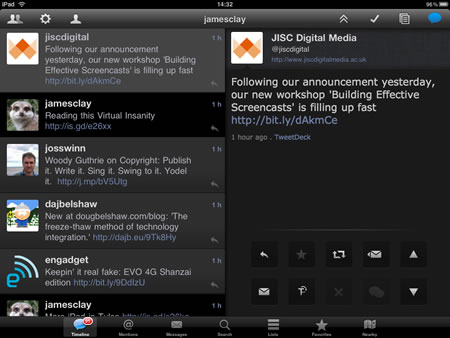
Osfoora HD for Twitter is a blazing fast and clean twitter client for your iPad. Provides elegant and easy access to all of Twitter’s functionalities. Osfoora HD has all the features of Osfoora for iPhone and more.

With a gorgeous user interface, multiple account support, optional full landscape mode (customizable), text expander, boxcar support, twitter lists, nearby tweets, and the ability to tweet songs… using twitter becomes a joy!

£2.39

There are many Twitter Apps out there for the iPad some are free and some like Osfoora HD cost money. With the wonderful screen size of the iPad is that you don’t even need an App you can just use the web interface, the Safari browser works just fine. So why would you spend £2.39 on an App like Osfoora HD?

That’s a good question.

If you use Twitter only occasionally then you probably wouldn’t want to spend hard earned cash on a Twitter App, to be honest I am guessing if you are reading this review you probably are a regular Twitter user and as a result are looking for a tool that enables your use of Twitter to be easier and more effective.

The main reason I switched to Osfoora HD over the free Tweetdeck and the web interface was conversations. When I dip in and out of Twitter I often come across a conversation I don’t just want to know the end of the conversation I also want to know where it started. There may be a way of doing that on Tweetdeck, but I couldn’t work it out. On Osfoora HD all I need to do is click the blue conversation icon!

As with most Twitter Apps you can easily add images, via TwitPic or other Twitter image services, video. Unlike some Apps you can add multiple photographs to single posting if you want.

Yes I know that the iPad doesn’t have a camera, but if you have an iPad camera connection kit you can very easily transfer images from your camera to the iPad. When you add URLs you can “shorten” them making it very easy to add multiple long URLs to any Twitter posting. You can also add your location if you want to.

It’s also very easy on the App to either use the Twitter version of Retweet or to use RT if you prefer that method.

If you use Twitter a lot you may have more than one Twitter account, Osfoora HD allows you to add multiple accounts. This is something that is often missing from many free Twitter Apps.

It’s quick and easy to access searches or lists, though I do think Tweetdeck does this much better.

At the end of the day there is no real reason to buy a Twitter App for the iPad, however I find that using Osfoora HD makes using Twitter easier and more effective. I liked the App so much that I wanted it for my iPhone, this is one downside, unlike a lot of other Apps that you buy once and works on both iPad and iPhone, with Osfoora you need to buy one App for the iPad and one for the iPhone!

100 ways to use a VLE – #10 Gradebook

Keeping track of student assessment can be an administrative problem for some practitioners. Who has done what and what they got needs to be recorded so that the practitioner has a fair idea of the progress learners are making on the programme.

Obviously this can be done on paper, on a spreadsheet or a piece of dedicated gradebook software.

You can also use the VLE as a gradebook. Used in conjunction with an assignment submission and assessment system it will allow the practitioner to know easily who has submitted a piece of work, what grade they got, revisit the feedback given and check the status of any referral work.

This data can then be exported and imported into any proprietary gradebook system the institution may have.

Another advantage of using the VLE is that the information is very easily accessible by the learner, so that they can see their grades.

Photo source.

Google Chrome Tablet in November (perhaps?)

Download Squad are reporting that there will be a Google Chrome Tablet coming in November.

Yes, our source tells us that Google is building a Chrome OS tablet. It’s real, and it’s being built by HTC.

HTC of course made the Nexus One.

If this is real, are Google doing this for the same reasons they released the Nexus One. It has been said that Google made the Nexus One so that it would stimulate the Android phone market. Google aren’t going to make a Nexus Two as there are loads of Android phones now available out there.

So I do wonder if there is to be a Google Chrome tablet, are Google doing this for the same reasons they released the Nexus One to stimulate the market for a Chrome tablet?

With the success of Apple’s iPad most of the manufacturers who announced tablets before Apple made their iPad announcement seem to have backtracked and aren’t going to make them now.

Maybe if a Google Chrome Tablet takes off, we will see a whole load more tablets released.

aSmart HUD – iPhone App of the Week

aSmart HUD – iPhone App of the Week

This is a regular feature of the blog looking at the various iPhone and iPad Apps available. Some of the apps will be useful for those involved in learning technologies, others will be useful in improving the way in which you work, whilst a few will be just plain fun! Some will be free, others will cost a little and one or two will be what some will think is quite expensive. Though called iPhone App of the Week, most of these apps will work on the iPod touch or the iPad, some will be iPad only apps.

This week’s App is aSmart HUD.

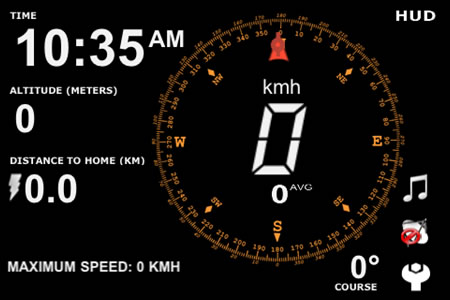
aSmartHUD is simple and clear vehicle digital dashboard.

£0.59

This App provides a simple heads up display that gives you an indication of your speed, direction and position.

It is designed so that you can “reflect” it onto your windscreen so you can pretend your car is a fighter jet!

A bit of fun really.

Get aSmart HUD in the iTunes App Store.

100 ways to use a VLE – #98 Embedding RSS feeds into the VLE

Keeping the content on the VLE current, topical and updated can be a real challenge for many practitioners. It can be both time consuming and if you are new to adding regular additional content to the VLE it can be easily forgotten that you said to yourself that you would regularly add content.

Of course for virtually all subjects there are loads of other people out there creating new, current and topical content. On blogs and news sites, lots of relevant and interesting content is being created.

The key is to ensure that the learners are made aware of that content quickly and easily.

You can of course copy and paste links and content into the VLE, but this has to be done manually and sometimes you are busy or just plain forget…

So that’s where RSS comes in.

What’s RSS?

Really Simple Syndication!

What’s Really Simple Syndication?

I knew you might ask me that!

The simple explanation is that RSS allows for content to be easily used and shared (syndicated) onto other web sites automatically. As that content is updated, the RSS ensures that the updated content is made available on the other web sites.

When content sites (like the BBC) update their content, they update their RSS feed. This feed can then be “added” to the VLE ensuring that when the content (and the RSS feed) is updated, the content on the VLE is automatically updated.

So by adding RSS feeds into the VLE, you can easily add new and exciting content into the VLE that update automatically without either the practitioners or learners needing to do anything.

I should point out that a few learners may want to subscribe to the RSS feed direct using a browser or feed reader. They may for example have a feed reader on their iPad or other mobile device.

So how do you add an RSS Feed into the VLE?

Well different VLEs do it in different ways. On Moodle the easiest way is via the Remote RSS Feeds Block.
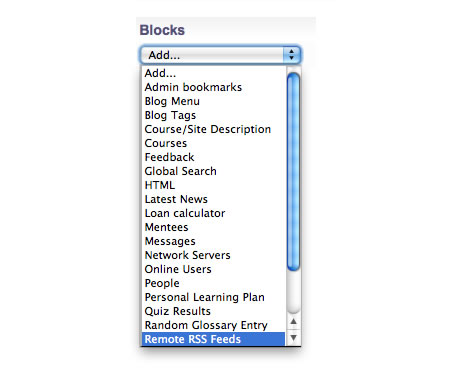
This then allows you to add an RSS feed (like the feed from this blog) into the VLE.
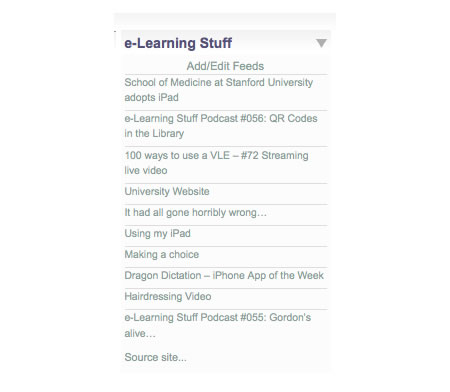
The next question is I know, how do you know where the RSS feed is?

Well the address for the feeds will look something like this.

http://feeds.bbci.co.uk/news/technology/rss.xml
https://elearningstuff.net/feed/
http://screenr.com/user/jamesclay/rss
http://audioboo.fm/users/2631/boos.atom

As you can see it’s not just news and blogs that have RSS feeds, you can also find RSS feeds for services like Screenr, Flickr and Audioboo.

So when you visit a page with an RSS feed on most modern browsers they will have an RSS icon.

Click the RSS icon to see the feed. Another way of describing an RSS feed is as content without the formatting.
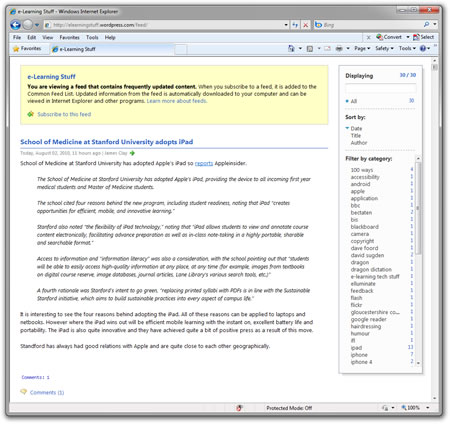
In this example the feed is in the address bar.
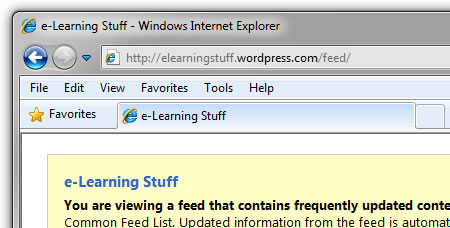
Copy that into the Add a news feed URL field on the VLE.

This will allow you to embed the RSS feed into the VLE.

What’s nice about the Moodle Embed RSS block is that you can add multiple feeds into a single block.

Adding an RSS feed to the VLE can be for many practitioners quite a complex and challenging task, mainly as it can be difficult for many of them to understand what RSS is and means. However once you get past that hurdle it is then a quick and easy way to add current and topical content to your course on the VLE automatically.

Photo source.

news and views on e-learning, TEL and learning stuff in general…