BBC Click have posted a useful video with tips and advice on improving your podcast.
I recently posted my own podcasting workflow which covers not just the technical side of my podcasting, but also has some tips and advice too.

BBC Click have posted a useful video with tips and advice on improving your podcast.
I recently posted my own podcasting workflow which covers not just the technical side of my podcasting, but also has some tips and advice too.

Documents To Go Premium – Office Suite – iPad App of the Week

This is a regular feature of the blog looking at various Apps available. Some of the apps will be useful for those involved in learning technologies, others will be useful in improving the way in which you work, whilst a few will be just plain fun! Some will be free, others will cost a little and one or two will be what some will think is quite expensive.
This week’s App is Documents To Go Premium – Office Suite
“DocsToGo Premium” lets you:
- EDIT, CREATE & VIEW Word, Excel & PowerPoint files (Office 2007/2008/2010)
- View PDF, iWork & other files
- iPad/iPhone 4/iOS 4: Send & receive attachments using the built-in Mail app
- Access, view, edit & sync supported files stored in Google Docs, Dropbox, Box.net, iDisk & SugarSync
Free desktop app (Win & Mac) with 2way file sync (WIFI required)
Download, view, edit & sync supported files from Google Docs, Dropbox, Box.net, iDisk & SugarSync directly in DocsToGo
£11.99
Though I am a great fan of Pages and Keynote on the iPad, there is one app that I went out and bought in addition to them, and that was Documents To Go.
It is an app for viewing, creating and editing word processing document, spreadsheets and presentations. The focus is on working with Microsoft Office files.
Now there are two versions of Documents To Go, the standard version and the premium version. The standard version is £6.99, whilst the premium version is £11.99.

The standard Documents To Go app lets you:
So if your workflow is focused on Word and Excel and you are happy with moving files either by your e-mail or using iTunes, then get the standard app.
You can either get the files from your e-mail, through iTunes or use the free desktop app to sync your files (through wifi) between the iPad and your computer.
Documents To Go Premium has the same functionality as “Documents To Go” but also lets you:
It’s nice to be able to edit PowerPoint files from the iPad and save them in the native PPT format. If you have to share and collaborate on presentations then importing them into Keynote and exporting them out again isn’t really an option. Documents To Go at least for most presentations works much better.

It was the final feature that was the dealbreaker for me, I do use Google Docs a lot and at the time I bought this App this was the only way to importantly read and edit Google Docs from the iPad.
You can now of course edit Google Docs from the browser (for free) but it isn’t an entirely user friendly experience and I still use Documents To Go for editing and creating Google Docs on the iPad.
However I do use Dropbox a lot and this functionality means I can easily view and edit files from my Dropbox.
You can upgrade the standard version with an in-app purchase but this will cost you an extra fifty pence!
The app is an universal app and therefore also works on the iPhone or the iPod touch. Due to the screensize I find this less satisfactory for creating and editing, but for viewing it is very useful.
If you, and I suspect, most people reading this do, need to deal with Office documents on a daily basis and you want to do this on your iPad then Documents To Go is the ideal application for this. I have not been disappointed with the app and it makes it much easier to deal with all those documents I seem to get in my e-mail.
Looking at the applications on my Mac that I use on a regular basis, apart from mail and browsers the one app I probably use the most is Apple’s Keynote. I use it to create presentations for events, conferences and workshops. Having delivered my presentation (or sometimes before) I would upload it to Slideshare. Slideshare is a great site for hosting presentations that can then be embedded into blog posts, web pages or the VLE.
Though you can upload Keynote presentations to Slideshare, due to the nature of the types of presentations I create I have had issues with the conversion process. It works fine with simple presentations, buy my multiple page presentations sometimes have ground to a halt. As a result I now use the following workflow to ensure that my presentation uploads correctly to Slideshare.
I use the same process if I need to share the presentation with others, some conferences and organisations like to have a copy of the presentation on their website. Also when I know I will be presenting at a conference and I won’t be able to use my Mac directly and will have the use the provided Windows PC that is connected to the projector.
The process also works really well with online presentation systems such as Elluminate, Adobe Connect, Instant Presenter, and so on…

Those of you who have heard me present in recent years may have heard me talk about how we have a culture based on “we do what do, because we have always done it that way” and talk about the start of term in September and the long summer break and how this is because in the past we needed to let the children get the harvest in…
So I did enjoy reading Mick Water’s column in the TES in which he talks about the long summer break and that getting in the harvest is a bit of a myth…
There are many myths about the school year’s provenance. The pattern of the harvest is a favourite but not very solid: the people who drove the beginnings of our public-school system did not really need their children home to help with harvest as they had workers for that. The universities, though, needed time to assess the results of their entrance examinations so that they could organise their new autumn intake. The school holidays mirrored the pattern of Parliament, with the long summer break for the wealthy of the time.
Indeed, the long summer holiday was essential for public schools so that children could do proper things with their parents like go on the grand tour of Europe, join a safari, learn to shoot things, and visit museums and theatres. After that, schools would “top up” the pupils’ education by teaching them things beyond their families’ scope.
Well going to have to now go and edit my presentations and remove all those harvest pictures.
Even so the point I was making still stands, we do things, because we have always done them that way. The origin of the long summer break isn’t the important point, the point is that we continue to have long summer breaks, because we have always had long summer breaks. We don’t even really know why we have long summer breaks, but we continue to have them, because we have always had them.
Culture of organisations and the people within those organisations is often based on doing what they have always done. They continue to do what they do, as they have always done. There is no reason or incentive to change. Generally change only comes about when there is a shock to the system and we are forced to change.
As a learning technologist I see myself as an agent of change. However I see my role as changing the organisation, not just individuals. It is more challenging to change the culture of an organisation, but the impact will be greater.
On a final note (and I am sometimes guilty of this as much as the next person).
The summer break remains a chance to learn about the real world. The broader a child’s outside school experience, the easier it is to learn in the artificial world of the classroom.
Just to point out, though we sometimes think this, school, college or university is the real world and we should stop thinking it is something different, it sends the wrong message to learners, the wrong message to parents and the wrong message to politicians. If we think school isn’t in the real world then where is it? Mordor?
Really interesting piece from John Cleese about how when one is busy it can kill creativity.
Is the web making you be too busy to be creative?

When I first started teaching, a fair few years ago, I didn’t see the point of lesson plans, they were onerous things that only needed to be done if you were been observed or during an inspection.
As I gained more experience of teaching I came to realise the value of lesson plans in supporting the process of learning and importantly making life easier for me.
My lesson plans were never inflexible and didn’t stop me changing when things needed changing. They were there for support not as a constraint. They were flexible and elastic enough, so if there were issues with topics or subjects I could change or add as and when required.
Along with lessons plans were resources, links and further reading. These gave me extension activities or additional resources if the learners needed further coverage. Each lesson plan had an aim and learning objectives. Clear indicators of what we were trying to achieve in that lesson with measurable objectives that would indicate if learning had taken place. Within the framework was signposts to other modules or units, as well as other topics in the module I was delivering.
At the time we didn’t have a VLE so I put all these resources on a website, some as HTML, but most in a PDF format. This enabled learners to access the plans, the resources at a time and place to suit them. Though at that time it was less at a time or place to suit them as home internet access was quite rare. Most would either access in college or from the workplace, though some did have the Internet at home. All who did use it told me how useful it was to them.
Some teachers I know do not agree with this, and plan only a week in advance at most. As I knew I had a lot of stuff to cover, I would plan for a whole academic year in advance. The flexibility I built in ensured that if things didn’t go quite to plan then I could accommodate those changes. Planning only a week in advance is leaving a lot down to chance, especially if you don’t have a scheme of work in place to ensure full coverage of the syllabus for the course.
Today the VLE is an ideal location for those lesson plans, the framework for a module. A place to store the resources, embed the links and signposts to the resources form the lessons and additional resources to extend the subject to those wanting more.
Some people argue that learners shouldn’t have access to the lesson plans. Well maybe not the detail, but certainly they should know the aims and objectives of the lesson. Access to the resources is also useful if not essential.
On most VLEs it is possible to “hide” resources from learners, by hiding the detail, but showing the core, learners will have a better idea of what they were suppose to be learning in each lesson.
If learners know where they are, where they have been and where they are going then they are in a much better position and research has shown that this can have a positive impact on retention and achievement.
By placing lessons plans on the VLE you not only make things better for the learner, but you also make planning much easier and faster in subsequent years. This can make life easier, giving you more time to do new things, enhance what you do already and increasing the amount of time you are supporting learners.
People like standardisation it makes life easier, it is easier to provide advice and guidance and removes barriers. The implication is that if everyone used the same device, the same formats and the same delivery mechanisms then it would be easier to deliver video and audio to learners and for those learners to create audio and video themselves.
Audio is a little easier to standardise, most people have heard of mp3 and most devices can play mp3 files. That should make it much easier to roll out, however due to the fact there is a patent behind mp3 and licensing fees that need to be paid, means that some devices though can play mp3s can not record direct to mp3. These devices will use other audio codecs that play fine on the device in question, but not necessarily on other devices or through a browser. The solution in Gloucestershire College was to standardise on the Edirol R09H which records natively to mp3 onto an SD memory card. Yes it is expensive, but it does record to mp3 and the quality is excellent. Use of SD cards meant that it was very easy to transfer recordings to a laptop or computer and then share them on the VLE. The quality of the audio recordings were excellent.

Of course though the mp3 standard is ubiquitous, recording to mp3 is not necessarily the best format to use, especially if you are going to do any kind of editing on the recording. If for example you are going to be using Garageband to edit the recording and create a podcast, then you are not going to want to use the mp3 format. The reason is that an mp3 file is compressed and uses what is called a lossy compression, in other words information is lost when the file is compressed. If you edit and then compress again, more information is lost. As a result you are compressing a compressed format and you will lose even more quality. This means you can get a less than satisfactory recording. For those who prefer a higher quality the Edirol R09H can also record direct to uncompressed WAV. This is CD quality and doesn’t use any lossy compression, so no loss of quality when editing the file. Of course the problem with WAV is that the file sizes are large so distribution is a problem, so the final edited audio file can then be compressed to mp3.
It’s one thing to record audio, delivery is something else. Placing the audio file on the VLE makes it very easy for learners to access and download the recording in their browser. However for regular recordings it makes more sense to use RSS or podcast the recordings. This will allow learners to subscribe to the series of recordings through software such as iTunes and then transfer the recordings to a portable device such as an iPhone or iPod. The challenge here is not just technical, but also the recognition from practitioners of the importance of a regular series of recordings or podcasts.
If audio is difficult video is much more challenging. Different cameras and devices record video using different formats and even when they use the same format, they may use a different codec. Modern operating systems generally have few problems using MP4 video files, both Windows 7 Media Player and OS X QuickTime X can play modern MP4 video files. Many mobile devices and smartphones can play MP4 files too. However one of the challenges facing FE Colleges is that many are still using Windows XP which doesn’t natively support MP4 and isn’t from a networking perspective the easiest to add that functionality.

One solution is to upload the video to sites such as Vimeo or YouTube and use Flash. Flash is often the solution to the delivery of video on networks where native MP4 playback isn’t possible. The issue with Flash video is how do you deliver such video on mobile devices, many of which don’t have support for Flash? Also how do you deliver the video to mobile devices that are not network connected? Another issue is privacy, the problem with using sites such as YouTube is that they are public and it may not be possible or wanted that the videos are public.
A key technological challenge for institutions is to answer all those problems without it becoming a barrier to learners and practitioners.

Halftone – iPad App of the Week

This is a regular feature of the blog looking at various Apps available. Some of the apps will be useful for those involved in learning technologies, others will be useful in improving the way in which you work, whilst a few will be just plain fun! Some will be free, others will cost a little and one or two will be what some will think is quite expensive.
This week’s App is Halftone it is an universal app available for both iPad and iPhone.
Halftone adds an aged halftone-style printing effect to photos to give them a unique, vintage look. With 27 paper styles, nine built-in layouts, two caption styles, six different speech balloon styles, 24 stamps, and the ability to choose a font (including three embedded fonts), photos can be customized, then saved to the photo album, sent via e-mail, shared with friends on Facebook and Twitter, and printed.
£0.69
I do like this app, it is quick and easy to use and the results are pretty nice. What the app does is take one of your photographs and adds an aged vintage comic style look to it.

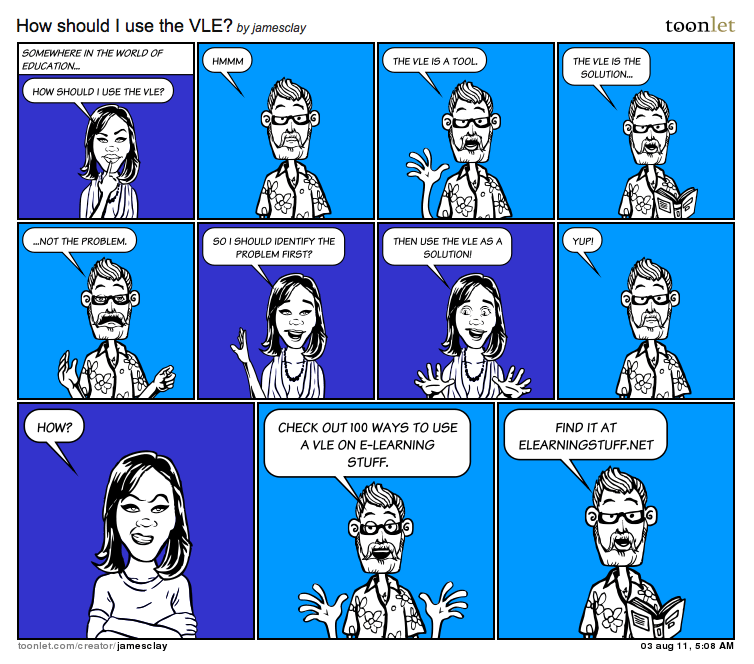
Often many VLE courses look very “boring”, a list of resources and activities. Often many VLE courses look very “boring”, a list of resources and activities. This is partly down to the fact that a VLE is often seen by practitioners as a repository of content, with links to resources and activities. One way to break up the list is to use embedded graphics to enhance the visual appeal of the course on the VLE.
One use of graphic that can enhance the look of a VLE course or as a mechanism to engage learners is to embed a comic strip into the VLE course.
Comic strips can be serious as well as humourous. They can be used as the starting point for a discussion, to emphasise the key topics in an assignment, to engage learners in a particular subject or just to break up a list of other resources.
You can either use an existing comic strip or using a tool create your own.
Continue reading 100 ways to use a VLE – #89 Embedding a Comic Strip