Prezing

I know a lot of people like and use Prezi, though I created an account back in 2009 or thereabouts, I have not yet managed to create even a single presentation until now.

I am delivering some training this week and wanted to include Prezi, so I thought I ought to create at least one presentation. Having planned the presentation on “paper” well using a Word Processor, I then created the presentation using Prezi.

It was quite simple to create, though I would recommend going through the tutorial. Designing the presentation takes a little more thought than the standard slides you find in Powerpoint or Keynote. But you can add images and video quite easily.

I am still a little unsure of the real benefits of Prezi, in some ways it reminds me of Powerpoint with vomit-inducing transitions. Though I do like the fact that it is possible to see the whole presentation on the screen at once and go to where you want to go in a non-linear fashion. In many ways I think Prezi works better allowing individuals to explore the presentation at their own pace, over showing the presentation to a large group. Of course if you show it first and then allow exploration later, it does work better than Powerpoint in that way.

…but I’m a technophobe!

King Edward I - Torbay Express - 30th August 2009

One of the issues with embedding technology into teaching and learning is the resistance to the embedding by practitioners.

Many factors are discussed for the reasons, from fear of technology, to a lack of time. These discussions fail to recognise that there are many practitioners for whom embedding technology is something they can do in the same time as everyone else. Can time really be the issue, isn’t it much more about priorities than a lack of time?

As for the fear, I am sure there are some real technophobes out there, those for whom technology is a really scary thing that needs to be feared (like dragons) and should never be used. These people probably don’t have a television, a microwave, nor a phone (let alone a mobile phone). These true technophobes do exist I am sure, but as a proportion of practitioners in education, they must be a very small minority, less than 1% for sure and probably a lot less.

So what of the others? Those that say they are fearful of technology?

Well I suspect that these use technology on a day to day basis and probably don’t actually consider it technology. I recall one practitioner been quite proud of the fact that she was a technophobe, however when questioned further she not only used the internet, but used IM and Skype on a regular basis to talk to her daughter in Australia! What is apparent talking to many practitioners who don’t see the need or feel they can use technology for learning, in their day to day life use technology all the time for their own needs and in their non-work life.

One issue that appears to be a barrier is that these practitioners have issues in transferring skills they have built up in their day to day life to using these skills to support teaching and importantly learning.

The same can be said with learners and a recognition that learners who use technology all the time, don’t necessarily know how to use technology to support their learning.

So how do we get teachers who use technology on a daily basis to be able to transfer their skills into the effective use of technology in the classroom?

That is a question that may take a little longer to answer.

The importance of dull technology

Who needs a computer when a typewriter will do!

Over the years I have gained a reputation at my college (and out and about) of talking about shiny stuff. I even called a mobile learning project Shiny as a result.

Though one thing that came out of a recent conversation with some extremely clever and bright people at a JISC symposium was the importance of dull technology. Dull as in not shiny rather than, dull as in boring.

For those of us involved in extreme e-learning or technology enhanced learning, we sometimes focus on the innovative, the exciting, the new, the shiny stuff. Well it’s where we want to be isn’t it, cutting edge and all that? We want to be using iPads, Android Tablets, the latest and best Web 2.0 tools and services. We get so excited at times that we even do projects and research on them, before writing it up, putting the stuff on a shelf and moving to the next new shiny thing.

I don’t think that there is too much wrong with that, some people do need to be at the cutting edge, they do need to be the blue skies thinkers, the people who innovate and create new ways of learning, inspired by changes in technologies and thinking.

As a result it can be very easy to forget the dull, the stuff we were using last year, two years ago or five years ago. We can even be dismissive of these dull technologies, pointing out how old they are, how useless they are “now” and that they are dead!

The main reason why dull technologies are important is that the majority of practitioners within an institution will not be at the cutting edge, will not be using all technologies innovatively. This means when planning training and staff development it is vital that dull technologies are included and allowed for. Just because we are bored with something doesn’t mean that someone else in your organisation will find it exciting and just the thing to solve the particular problem they are facing.

Photo source.

100 ways to use a VLE – #32 Calendar of Events

On many courses there are often many events taking place, from exams, deadlines, guest speakers, field trips. So how do you let learners when all these events are? How do you provide them with updates when things change? How will they access the list or calendar of events?

There are various ways of providing a calendar of events to learners, from paper to an Outlook calendar. Many VLEs such as Moodle do have a calendar function and this can be used to provide learners with a calendar.

The reason for using the VLE is that if this is the place where learners are going to get course information, download resources, converse in forums, etc… then it’s the ideal location to keep learners updated with what’s happening and when. It can be easily updated when those inevitable changes happen.

it’s useful if the calendar on the VLE can be exported, for example Moodle can export its calendar as an ics file. This ics file can then be imported into other calendars such as on a mobile phone, or a calendar app on their computer. This way learners can take the event calendar with them or access it with their other calendars.

Ten ways to use QR Codes

Sorry, this is not a blog post on ten ways to use QR Codes, but it is a blog post about what you actually can do with QR Codes. Once you know what you can do with QR Codes then you can build learning activities round those functions.

So what can you do with QR Codes?

QR Codes can be used to:

  • Display text to the user.
  • Add contact details to the user’s device, a vCard.
  • Open an Uniform Resource Identifier URI (most usually a web address of some kind).
  • Compose an e-mail address with the correct address.
  • Compose an SMS text message with the correct SMS number.

So there are five ways to use a QR Code. From those five ways, you can take an individual function and expand on how it can be used for teaching and learning, so for example taking the “open an URI” function, there are many ways that can be used to support learning.

Knowing what the five functions are, you can then be sure that QR Codes are the correct solution to solve a particular problem.

For example, you can use a QR Code to display text to a user. It has to be asked why would you display a QR Code to a user for text, when the text might as well be displayed, or given on paper! One reason you might for example is if you want the user to then take text move to a different location and then act on instructions in the text. With some large QR codes allowing up to 1852 characters you could provide users with some instructions or rules or something that they need to keep close. With text to speech, a user could read a QR Code and then the phone could read the text to the user. So there are reasons for using the text function of QR Codes, especially as the user won’t need any connectivity to read the text. However if displaying the text would be just as effective, why then use a QR Code?

Adding contact details is useful, for example providing details of the Library support phone number and e-mail address. QR Codes provide a quick and easy to add those details to a user’s address book on their device.

Opening an URI (for example a web address) is an often used function of QR Codes, we use it ourselves in the Gloucestershire College libraries. The best way though to think of QR Codes is as an URL shortener, like TinyURL, bitly or is.gd taking a long URL and providing learners with a shortened version. One mistake that people make is forgetting that when using QR Codes, the web page will 99.9% of the time be then displayed on a mobile device, probably using 3G. So there is little point in pushing out web content that won’t work on mobile devices or is huge etc…. Remembering that QR Codes are merely a way of shortening URIs for mobile devices means that users will get a better experience. Don’t just use a QR Code because you can, use it because it makes a difference, makes it easier for learners and makes it faster to access “the something else” that the learners need.

Using QR Codes to enable a user to send an e-mail or an SMS I think is a really useful way of using the technology. Do you want more information? Do you need help? Vote for this awful singer on X-Factor! Sign up for a newsletter. Of course it implies that either their device can send e-mails or they want to pay to send a text.

So sorry there aren’t ten ways of using a QR Code in this blog post, but I hope it clarifies what QR Codes actually do, the five actual ways to use a QR Code.

I don’t think there is anything wrong with using QR Codes, because they are QR Codes. We once did a QR Code treasure hunt, the reason though was not because we wanted to use something “awesome” no it was because we wanted to promote the use of QR Codes in the library that were been used to help students find e-resources and online content.

Photosynth – iPhone App of the Week

Photosynth – iPhone App of the Week

This is a regular feature of the blog looking at various Apps available. Some of the apps will be useful for those involved in learning technologies, others will be useful in improving the way in which you work, whilst a few will be just plain fun! Some will be free, others will cost a little and one or two will be what some will think is quite expensive.

This week’s App is Photosynth.

Photosynth for iOS is the panorama creation and sharing app that lets you capture more of your world. Now you can capture 360° in all directions (up, down, left, and right) to create spectacular images. Using the latest in computer vision techniques, Photosynth makes it easy and fun to create and share interactive panoramas of wherever you are.

Photosynth can share images and interactive panorama experiences to Facebook (with the included free Photosynth.net service). Integration with Bing Maps means millions of people could see your panoramas on maps and in search results for locations you’ve captured.

Free

This new app from Microsoft for iOS devices now allows you to capture photosynth pictures and display them on your iOS device. Think of stitched panoramas that allow for a full 360° view of a location.

Previously, though it was possible to view Photosynth panoramas on iOS devices, you had to go to a Windows only website to create them. That all changes with this app, you can now create Photosynth panoramas using your iPhone.

It’s very simple to use, but takes a little practice to get a really good panorama.

You move the phone around and the software either automatically takes the photographs or prompts you to do so. It then stitches them together.

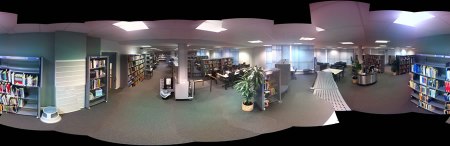
You can either then share the completed panorama on Facebook, the Photosynth site or on Bing maps. This is for me one of the downsides of the app, as it isn’t possible to create a private “interactive” Photosynth panorama. Yes taking one of the college library is fine, but imagine wanting to take one of a wedding or a group of learners in the classroom. This may not be a panorama you want to share with the world. Any panorama that you do capture is saved to your Camera Roll and thus can be used by other apps or saved to your Mac when you sync. So for “static” panoramas it is possible to keep them private and that’s what I would use for those panoramas I take of people or weddings… So for taking panoramas of places and great views, yes a great app, for panoramas of groups of people, less useful. The reason is that the interactive version just “feels” better.

I should  point out that the first time I used the app I consistently failed to upload any panoramas to any site. I was able to upload the following day so have put that down to server problems on the day I was using it.

I should also point out that the panoramas in this review are the first ones I created. This one was particularly bad, so do practice with the app to get better results.
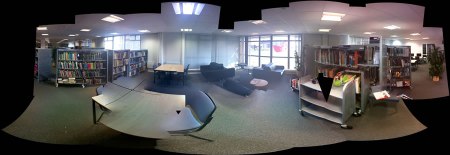
I have resized the images to 900 pixels wide, but the app does save them as full size images, so the original image was over 4000 pixels wide.

Compared to other panorama apps, and the fact it is free, this is in fact pretty good and does a reasonable job with the iPhone camera in creating panoramas.

news and views on e-learning, TEL and learning stuff in general…