ALT Live Beta

This has been an experiment I have been thinking about doing for a while now, and I emphasise this is an experiment, hence the beta moniker. I have no idea if this will work as planned or is something that people will engage with.

Amplification of conferences is something that has been happening for a while and I have discussed at length in a previous blog post.

In that post I talked about my social media experience of the ALT Conferences I had attended since 2003. I said that ALT-C 2007 was a bit of a sea change and the first of the ALT Conferences that social media really started to amplify the conference beyond the walls of the physical conference. Amplification can take many forms and Brian’s post about providing an Amplified Event Service is well worth reading.

There are many people who can not make ALT-C for a variety of reasons, sometimes no funding is available, many people interested in the conference don’t live in the UK so making it more difficult to get funding and from my own sector, the first week in September for FE Colleges is the busiest one of the year, so very few FE people can attend the conference in person. For these people amplification of a conference can allow them to “attend” and engage. For some the end result will be that they enjoy the experience and attend the conference the following year.

In the past at ALT-C, though we have had the live streams of the keynotes and invited speakers, most amplification has been textual through Twitter and blogs. A few people used Flickr to share photographs and back in 2009 we did live stream “The VLE is Dead” to a remote audience, however using wireless and no remote microphone meant that the final half of the session, the discussion was either difficult to hear and at one point the stream failed!

However it did make me think about doing something more at ALT-C than twittering and writing blog posts. The inspiration was the experiments on live streaming I had done via my mobile phone at the JISC Conference and a MoLeNET Conference and also the live presentations I had done as part of the MoLeNET programme. Experiences of the JISC Online Conferences had also demonstrated the value of video and audio for amplification in addition to textual stuff.

One of the things though I find with existing ideas on amplification is that they focus on the core content of the conference and miss all the stuff that happens outside the sessions. The chat and discussions people have over coffee. I have been at events that have had a fantastic Twitter stream that gets suddenly cut off as everyone has coffee or lunch. The delegates at the event are continuing to discuss and converse, however it all goes silent for the remote audience!

So at ALT-C 2011 I am trying a new idea in order to capture, create and engage in that “silent” online time. Probably the best way to describe what ALT Live Beta is, is if you have ever watched Glastonbury or T4 on the Beach on the television, as well as the “front stage” stuff, they also have a room back stage where they chat, discuss and interview the people who have just been on stage. ALT Live Beta is a live internet video stream of the “back stage” of ALT-C 2011.

Me and Darren Moon (from LSE) will be hosting, broadcasting and doing all the technical stuff. We will be based in the exhibition area at the conference, we have a little booth to act as a studio. We will be streaming live from 8:30 – 6:00 on Tuesday and Wednesday and 8:30 to 1:00 on Thursday. Though you might want to tune in on Monday afternoon as we set up the equipment and do some final testing.

The video stream will be embedded into this page.

If you have an Android phone then there is a Justin.TV and one for iPad and iPhone. You may need to search for “jamesclay” or go to www.justin.tv/jamesclay/ to watch the stream on your mobile device.

With interviews, chat, commentary, guests, discussion and more, ALT Live Beta will be bringing you the best of ALT-C 2011 and lots of back stage conversations live over the internet.

Now we also want to bring in remote participants and I will be using Skype to do this, so if you are interested in participating remotely please e-mail me with your Skype name. You will need to sign a release form which I will send to you.

If you are attending the conference we do need delegates to come and be part of the broadcast. We want to give you an opportunity to talk about what you are getting from the conference, your views on the keynotes, the invited speakers, the papers, the workshops and all the other sessions. Come and discuss your session with remote participants or continue the discussion that didn’t happen because you ran out of time. Without the contributions from delegates, presenters and speakers this may not work as we want it to.

Recorded highlights from ALT Live Beta will be made available later on the ALT YouTube Channel.

Photo source.

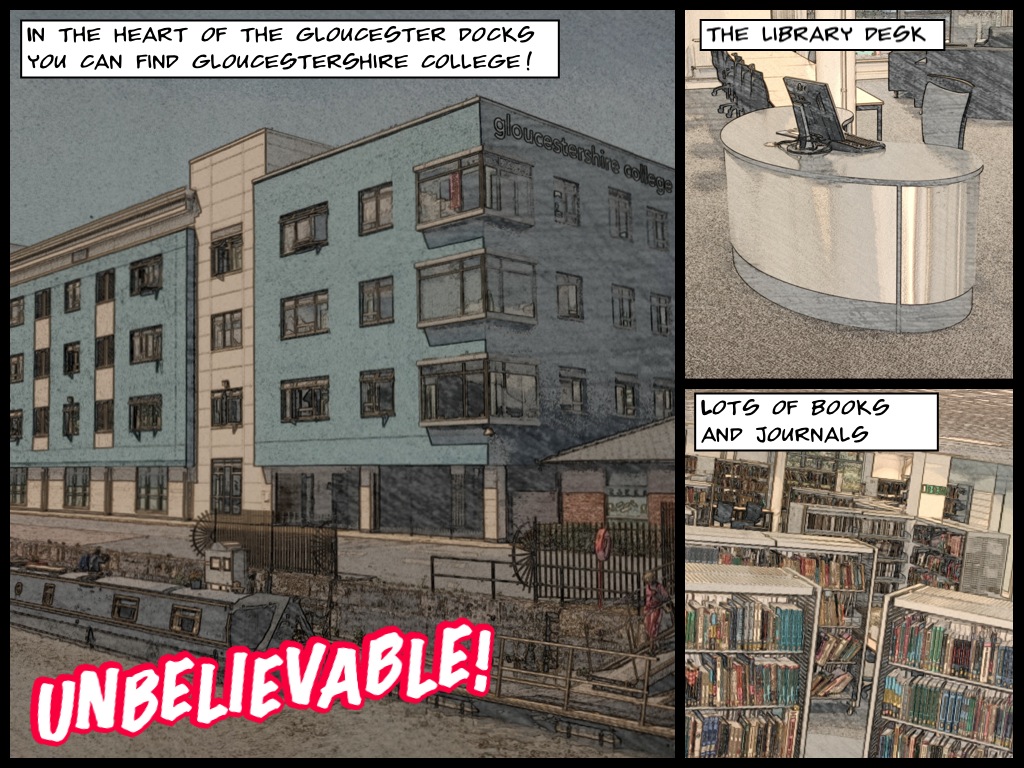
Paper Camera – iPhone App of the Week

Paper Camera – iPhone App of the Week

This is a regular feature of the blog looking at various Apps available. Some of the apps will be useful for those involved in learning technologies, others will be useful in improving the way in which you work, whilst a few will be just plain fun! Some will be free, others will cost a little and one or two will be what some will think is quite expensive.

This week’s App is Paper Camera.

Real time cartoon and painting effects painted on your camera video feed!! See the world through a new,original,stylish and captivating lens, have a wonder in your own home and discover how cool is now your world in cartoon!

This is the ultimate collection of cartoon/sketch/comic book/halfone/noir/neon and many other effects painted directly in your camera, no more boring post-effects, it’s all real time, you simply won’t stop wandering, wherever you are, having a look at things and cartoon-ize them!

We’ve packed this app with many stylish cartoon-style filters, so you would never get bored!

Import your existing pictures and paper-ize them, they will look absolutely stunning, we just couldn’t stop looking at them, take a another one, paper-ize it, and then looking at it, pretty much forever…

£0.69

This really nice image manipulation app creates cartoon or sketch like images from either your photographs, or applies the filter in real time so you can see what your image will look like through the live image from the camera.

You can through the interface convert live camera footage into a sketch, cartoon or pencil drawing image in real time, use the camera button to capture the image through the live filter.

Of course been able to apply the filter to photographs in your photo library is probably more useful in the creation of learning resources. However one downside of this is that browsing for images is restricted to only your whole photo library and you can’t look into individual albums. So if you have a lot of photographs on your iPhone then this could be difficult to find existing images.

Once you have created these images they are saved to the photo library, so you can then use them for handouts, presentations, on the VLE; so you enhance and enrich learning resources. This is also an ideal tool to use with comic creation apps such as Comic Life or ComicBook!

Some images work better than others, so you may not always get the image that you hope for.

Paper Camera has an advantage that it is an universal app so works on the iPad and the iPod touch as well as the iPhone.

Paper Camera costs just 69 pence and is well worth the money for the clever images you can create using it. Get Paper Camera in the App Store.

Assessment

Having posted Steve’s presentation on assessment earlier, I was reminded that I had delivered some training on assessment and diverse forms of assessment a few months back.

This was the presentation I gave at the training.

The key message I wanted to get across to the participants was that just because they had assessed the way they had always done, this didn’t mean that was the only way they could assess learners. Often we assess the way that we do, we do it because we have always done it that way. There are now new tools and technologies that allow us to enhance and enrich assessment. and make it more engaging and effective for learners.

Sometimes we need to think differently, especially if the current methods of assessment are not doing what we need them to do.

e-Assessment

An interesting presentation from a keynote by that Steve Wheeler, Assessment in the Digital Age:Fair Measures?

Assessment, which in FE is heavily dictated to by the exam boards is always challenging to change to make “fit for purpose” and I do wonder if we assess because we need to assess rather than actually use it for something useful?

ComicBook! – iPhone App of the Week

ComicBook! – iPhone App of the Week

This is a regular feature of the blog looking at various Apps available. Some of the apps will be useful for those involved in learning technologies, others will be useful in improving the way in which you work, whilst a few will be just plain fun! Some will be free, others will cost a little and one or two will be what some will think is quite expensive.

This week’s App is ComicBook!

ComicBook! is the FULL featured comic book creation app!

In only seconds, turn yourself and your friends into comic heroes or villains. Be the star in your own comic book adventures.

Realistic comic styling with a wide selection of: image filters, comic fonts, customizable captions, a library of classic comic graphics and dozens of multi-panel page layouts.

£1.49

If you downloaded Halftone recently following my review of it a few weeks ago and are now looking to do something more than just the single image in Halftone then you might want to have a look at one of the more dedicated comic creation app.

If you have an iPhone or iPod touch then I would suggest you have a look at ComicBook!

It allows you to quickly create a comic strip using existing photographs or you can take some with your built in camera. You can, after choosing a layout add those images, either from the library or take them with the camera.

Continue reading ComicBook! – iPhone App of the Week

Mobile Learning Challenge

The International Association for Mobile Learning (IAMLearn, www.iamlearn.org), in collaboration with Epic (www.epic.co.uk), is proud to announce the Mobile Learning Challenge.

The Mobile Learning Challenge is searching for innovative and visionary solutions for learning using mobile technologies.
Practitioners, students, and young researchers are particularly encouraged to contribute their inspiring and visionary concepts. Specific technical skills are not required for participating!

Full details here.
 
The first prize

The winner of the Challenge will receive £1000. The winning solution will be presented to the mLearn 2011 conference audience either by the winner (if present at the conference) or by the President of IAmLearn.

This prize is co-sponsored by IAmLearn and Epic.

The second prize

The runner-up will receive a prize of 5 years’ free membership of IAmLearn.
 
Deadline for Submissions is Wednesday, 14 September 2011 24:00 GMT.

100 ways to use a VLE – #34 On a mobile device

When you consider the success of services such as Twitter, Facebook and even Google+ you do have to wonder if the availability of these services on the mobile platform have had any contribution to their success?

There has to be something about been able to access a social network at a time and place to suit the user. While you queue for coffee, wait for a train or bus. Travelling as a passenger in a car, even sitting on the sofa for ten minutes waiting for the programme that you do want to watch start. Even just before a lesson or lecture starts

During these short periods of time it would be possible to do some useful activities on the VLE, however if you need to start the laptop or PC you’re not going to be doing that in those short periods of time.

Of course most VLEs work fine on something like the iPad platform, even without Flash (which can be an issue with some learning objects). The advantage of the iPad is that it can be quickly switched on and stuff can be done. However though as popular as the iPad is, it probably isn’t something that most learners have.

So the next question to ask, is your VLE available on a mobile platform? Will it work on the iPhone or iPod touch? Will it work within a mobile browser on an Android or other smartphone?

Even if it does work within the mobile browser, is it a good user experience? Or is it a frustrating experience?

What functionality is lost when the VLE is accessed through the mobile browser?

There have been some native mobile apps developed for some VLEs, notably Moodle and Blackboard. These native apps offer a much nicer experience for users. In a similar vein that Osfoora for Twitter for example on the iPhone is a much nicer experience than the Twitter mobile web experience. Though of course based on software which was originally designed for the desktop browser they don’t always offer a 100% mobile experience of the VLE.

What these apps do is using a native mobile interface allow the user to interact with the VLE rather than using the default web browser view. How this works depends on both the app and the VLE, but the concept is that it makes it easier and quicker for the learner to access their learning via a mobile device. However even with mobile apps some learners may still not find using the VLE on their mobile device a useful or engaging process. Part of the issue has to be that often VLE courses are designed around content rather than activity and most course content does not sit well within mobile devices. Reading lengthy Word documents or viewing Powerpoint presentations out of context are quite passive activities and are not really suited to viewing on a mobile screen.

VLE courses that have content that focuses on activities, such as quizzes, discussion forums, interactivity probably fair better when used on a mobile device.

Another thing to think about is using video and audio on the VLE for learners to access through their mobile device. We come back to Flash again and if you are using a service such as YouTube or Vimeo these also have an HTML5 or h.264 version that does work on those iOS devices that don’t have Flash.

Of course using the VLE through the mobile device is not an alternative to accessing the VLE through a computer, it is complementary, it’s about adding and enhancing the experience, not replacing it. No one would expect all learners to only access the VLE through a mobile device, but by failing to even consider the opportunities that are offered by learning via the VLE on a mobile device is missing a trick.

Access and using the VLE through a mobile device does require the teacher to think much more about what they want the learner to do and achieve whilst using it. It isn’t just about providing a nice mobile interface to the VLE, the actual activities and content also need to be thought about if learners are to learn.

Skitching

I have been using Skitch for a while now and more so more recently for making screengrabs, annotating screengrabs and for sharing them.

In this example I used it to show a member of staff how to backup their course without the user data so then been able to create a fresh version of their course. This makes it much easier for the member of staff to see what I mean.

The advantage of Skitch over using the built-in screen grabbing tools in OS X is that you can edit the screengrab, add comments, highlight areas or even redact sensitive user information if required.

You can of course do all this with an image editing programme such as Photoshop Elements, however the advantage of Skitch is threefold, firstly it does the grabbing as well as the editing and has a bundle of editing tools. Secondly you can grab the entire window, a snapshot of part of the screen, or a delayed screengrab. Thirdly it comes with image hosting, so it’s very easy to upload and share the screengrab.

I have had the free version since it came out and due to my increased usage was considering buying the $20 plus version that has a few more features. Well as of today, Skitch has been bought by Evernote and as a result the plus version is now free.

The plus version has a few more features, the main one is that it can grab entire webpages and not just the part that is viewable in the browser.

So if you have been sharing screengrabs and want more than just the built in version that you get in OS X then get Skitch.

Get Skitch now in the Mac App Store.

Innovating e-Learning 2011: Learning in transition

Coffee

The sixth JISC online conference takes place this year on 22-25 November 2011, with pre-conference activities running from 15 November.

The conference is relevant to a wide range of delegates from further and higher education. Register now here to explore through live presentations and asynchronous debates some of the latest thinking about the benefits and challenges of enhancing learning and teaching with technology.

The title of the 2011 conference, Learning in transition, reflects the challenges institutions and practitioners are facing in the fast-changing landscape of post-16 education, including preparing students for employment.

Sessions are organised under two themes, each with its own keynote presenter:

  • Learning landscapes explores the potential in technology to forge cross-sector collaboration through which further and higher education institutions, learners and employers can work together to shape a more forward-looking curriculum
  • Navigating pathways opens up some of the challenges involved in learning and teaching in a digital age and discusses potential technology-enhanced solutions

New this year

The conference this year has a distinctly participatory feel with even more live events. You can take part in a number of ways:

Register at www.jisc.ac.uk/elpconference11

  • Contribute to the pre-conference activity week. Innovations this year include a Pecha Kucha session. To take part, email geoffm@directlearn.co.uk
  • Try out new tools and techniques throughout the pre-conference week
  • Share your reflections as the conference unfolds in a designated Thinking Space
  • Participate in live Elluminate® debates
  • Be inspired to contribute to James Clay’s blog, Letters from the Edge
  • Follow the conference on Twitter @ jiscel2011
  • Contribute your views on Twitter using #jiscel11

The fee for Innovating e-Learning 2011 remains unchanged at £50. Don’t wait – book now for the best value-for-money conference of its kind!

Why the coffee picture?

Well as everyone knows the coffee tastes better at an online conference…

Some more Screencasting

I have written and spoken before on this blog about screencasting. Three years ago I went through some of the possible applications that you can use on the Mac for screencasting. This is a bit of an update to that post and added ideas on screencasting for Windows.

Last year I posted a video on how to use the free online service Screenr. Screenr is a very clever free service that I use a lot for demos and training. However it is limited to five minutes, you need to ensure you get a perfect “take” as you can’t edit the resulting screencast and one further downside is that it is public, though it is possible to “quickly” download the Screenr recording as an MP4 file and then then delete the online screencast!

JISC Digital Media have a lot of resources on screencasting including tips and advice. I embedded their 6 Quick Wins presentation into the blog a few weeks back.

I also recorded a podcast with Gavin and Zak from JISC Digital Media in which we discussed what is screencasting, what can you do with screencasting, what tools are there for screencasting, top tips on making screencasts and delivery of your screencasts.

In Snow Leopard and Lion it is now possible to record screencasts using the built in Quicktime tool.

However as with Screenr you need to ensure you get it in one take, or stitch smaller videos together.

For a little more flexibility than the whole screen you get with Quicktime, another application IShowU gives you a few capture options, such as ½ or ¼ size. It also allows you to capture part of the screen, whereas Quicktime captures the whole screen.

iMovie on the Mac, which is usually used for video editing can be used to edit screencasts from recordings made from Screenr or Quicktime (or any of the other tools too).

One tool that I know a lot of people use for Windows is CamStudio.

CamStudio is able to record all screen and audio activity on your computer and create industry-standard AVI video files and using its built-in SWF Producer can turn those AVIs into lean, mean, bandwidth-friendly Streaming Flash videos (SWFs)

CamStudio can also add high-quality, anti-aliased (no jagged edges) screen captions to your recordings in seconds and with the unique Video Annotation feature you can even personalise your videos by including a webcam movie of yourself “picture-in-picture” over your desktop.

It’s open source and free to download.

One tool I do use for Windows is Captivate. This is very powerful software from Adobe that allows you to not only capture what is on the screen, but also edit the capture afterwards, add further audio, more screen capture and add captions. The main difference I feel with Captivate is that it is less reliant on making the screencast as a pure video file. You can add interactions and even quizzes to turn a simple screencast into a learning tool.

For the Mac I use Screenflow and this has been recently updated to version 3.

Get your video on the web with Telestream ScreenFlow screencasting software. With ScreenFlow you can record the contents of your entire monitor while also capturing your video camera, microphone and (with optional components) your computer audio. The easy-to-use editing interface lets you creatively edit your video; add additional images, text, or music; and add transitions for a truly professional-looking video. The finished result is a QuickTime or Windows Media movie, ready for publishing to your Web site, blog or directly to YouTube or Vimeo.

Use ScreenFlow to create high-quality software demos, tutorials, app demos, training, presentations and more!

Again one of the reasons for using Screenflow is that you can go in and edit the screencast, add more screen capture if needed, annotations, captions, subtitles. You can add audio, stills and video to enhance the screencast. You can also capture video at the same time, to add a picture in picture to your screencast.

If you rarely make screencasts then spending £70 on Screenflow is probably not good value for money. However if making screencasts is something you do on a regular basis and you have a Mac then I can recommend Screenflow as a useful and powerful tool.

Camtasia is another tool that is available for both Windows and Mac. Though for some reason the Mac version is much cheaper than the Windows version!

Create eye-catching training, presentation, and demo videos…the easy way. Camtasia for Mac screen recording software is streamlined, intuitive, and makes you look like a pro.

Easily record onscreen activity, Keynote slides, camera video, microphone or system audio—all with sparkling clarity. Record in front of a live audience or at your desk. Edit to perfection. Turn it into a stunning, HD-quality video at the perfect size to share on popular video sites, Apple devices, your website, blog, or anywhere you like.

A very similar tool to Screenflow and one that I know is used by a lot of people, especially on the Windows platform.

There are many ways in which screencasting can be be used to support learning and having covered some of the tools in this blog post, I hope to cover some of the ways in which it can be used in a future blog post.

news and views on e-learning, TEL and learning stuff in general…